











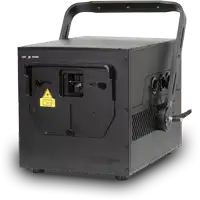

Cube Laser Control App - Troubleshooting
1. App does not start (iOS & Android)
App version not compatible
Solution:
- Check if the operating system (iOS / Android) is supported by the app version
- Compare minimum requirements in the App Store / Play Store
- If the OS is too old: update the operating system or use another device
Not the latest app version
Solution:
- Update the app in the App Store / Google Play Store
- After the update, fully close and restart the app
- Restart the device if necessary
Permissions not granted (Location, Bluetooth)
Solution:
- In device settings → App → Permissions
- Set location access to “Always allow” or “While using the app”
- Check Bluetooth permission as well
- Restart the app afterwards
Device too old
Solution:
- Check if CPU / RAM / Bluetooth version are sufficient
- Use with a newer device
App running in the background
Solution:
- Fully close the app and reopen it
- Try to force-close the app via the Settings --> App Menu of your phone
Old Bluetooth connection stored, maybe incompatible
Solution:
- “Forget” the Bluetooth device in settings and pair again.
App crashes
Solution:
- Uninstall and reinstall the app
- Fully close and reopen the app
- Make sure to have the latest App version
- Make sure the latest App version is still compatible with the device
2. App does not connect to the laser
Laser system not switched on
Solution:
- Fully switch on the laser system
- Wait for boot process (check status LEDs)
- If available: set operating mode correctly
Bluetooth not switched on mobile device
Solution:
- Activate Bluetooth on the device
- Disable flight mode
- Toggle Bluetooth off and on briefly
Device too far from the laser system
Solution:
- Reduce distance to approx. 1–3 meters
- Prefer direct line of sight
- Test connection in close proximity
- Reduce electromagnetic noise in the room / proximity
Too many devices with Bluetooth enabled in the room
Solution:
- Deactivate unnecessary Bluetooth devices
- Temporarily turn off other devices/controllers
- Test connection in a quiet, non-crowded environment
For CUBE 1: Power cable not connected
Solution:
- Check power supply
- Tightly plug in power cord
- Test wall socket (use a different one if necessary)
For CUBE 1.5, 3, and 7: Battery empty & power cable not connected
Solution:
- Check power supply
- Tightly plug in power cord
- Test wall socket (use a different one if necessary)
- Fully charge the battery
- Check charge level via status indicator
- Operate device on mains during testing
Laser firmware outdated
Solution:
- Update firmware to the latest version
Device in safety mode (e.g., after error or E-Stop)
Solution:
- Release E-Stop
- Check interlock for fuctionality (e.g. use bridge-plug for testing)
- Restart laser
Defective power supply or power cable
Solution:
- Check and replace cable if necessary
3. No output from the laser system
Laser system not switched on
Solution:
- Switch on device and check status LEDs
- Ensure no standby mode is active
Interlock disabled, E-Stop problem (safety connector to interrupt the laser emission in case of emergency)
Solution:
- Correctly connect an E-Stop to the interlock connector at the back side of the laser
- Make sure the E-Stop is not pressed - release the button
- Make sure the cable distance between the laser and the E-Stop does not exceed 50m
- Make sure the cable between the laser and the E-Stop is directly wired and not connected to any Switch or Hub or other network infrastructure
- Replace defective E-Stop
Key not connected, Key Switch not activated (key switch that enables and switches on the laser)
Solution:
- Insert key into switch
- Turn key to “ON”
- Test key function
Laser aperture covered
Solution:
- Slide down the protective slider / transport cover in front of the aperture
- Visually check aperture window
Wrong operating mode (e.g., DMX instead of App/Bluetooth)
Solution:
- Check operating mode on the laser and set to App/Bluetooth
4. Environment & external factors
Strong radio interference (Wi-Fi routers, wireless microphones)
Solution:
- Remove sources of interference or increase distance
Extreme temperatures
Solution:
- Bring device to operating temperature
- Check if additional protective housing is required
- Do not operate device outside of specified temperature range
- Observe protective shutdown