







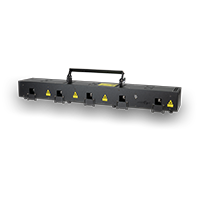

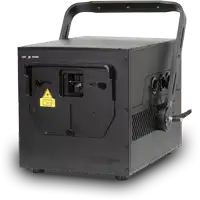

Settings and Configuration of the Laser Output
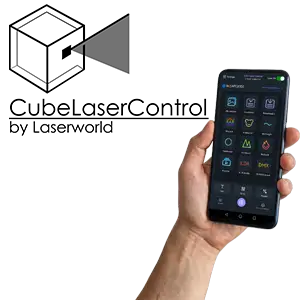
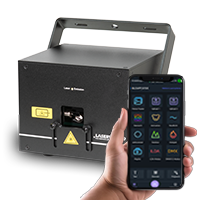
The laser’s color, speed, pattern size, position, and intensity can be adjusted directly in the app settings. All changes take effect immediately.
Use the Real-Time Control Mode:
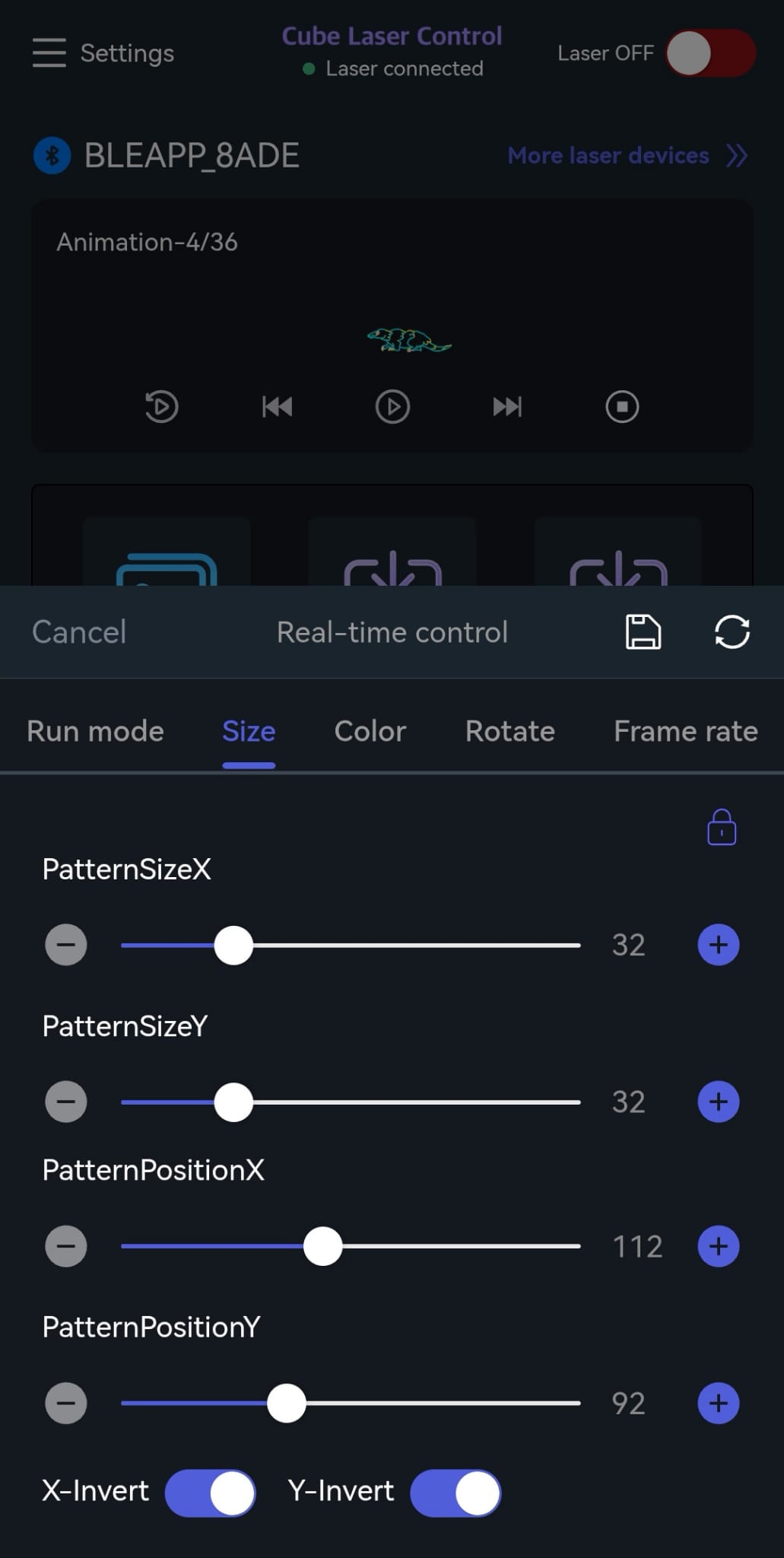
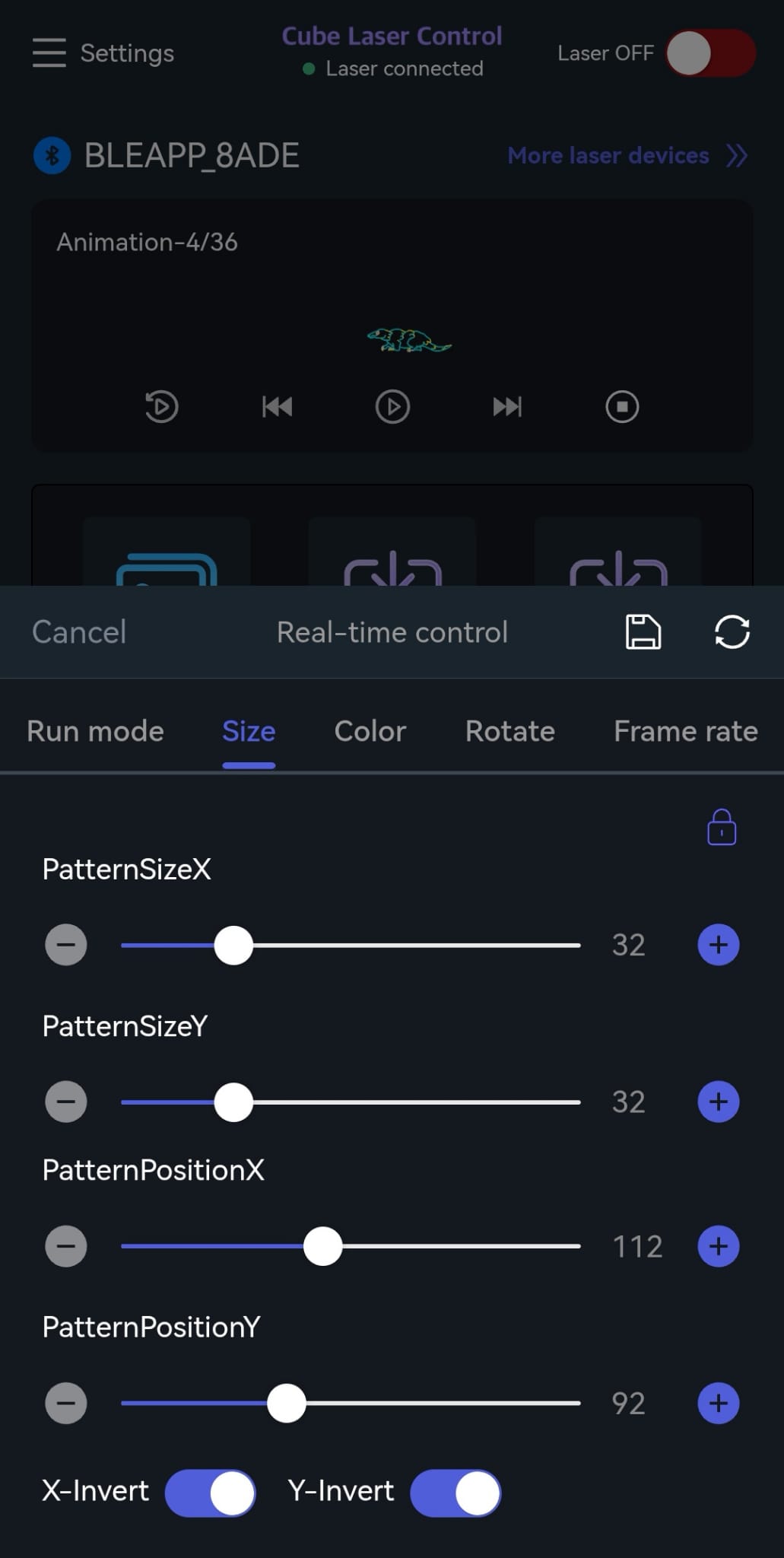
Pattern Size
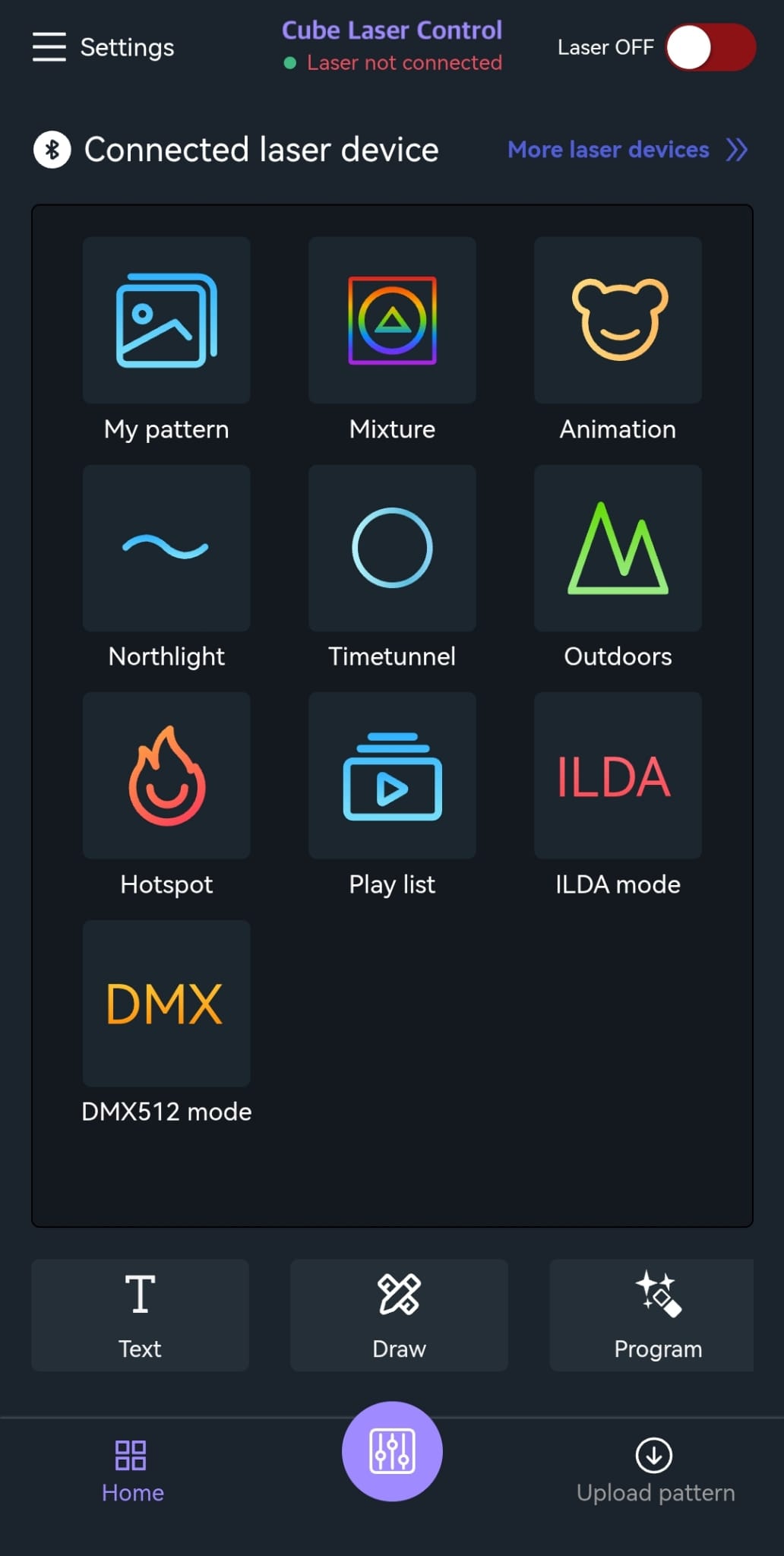
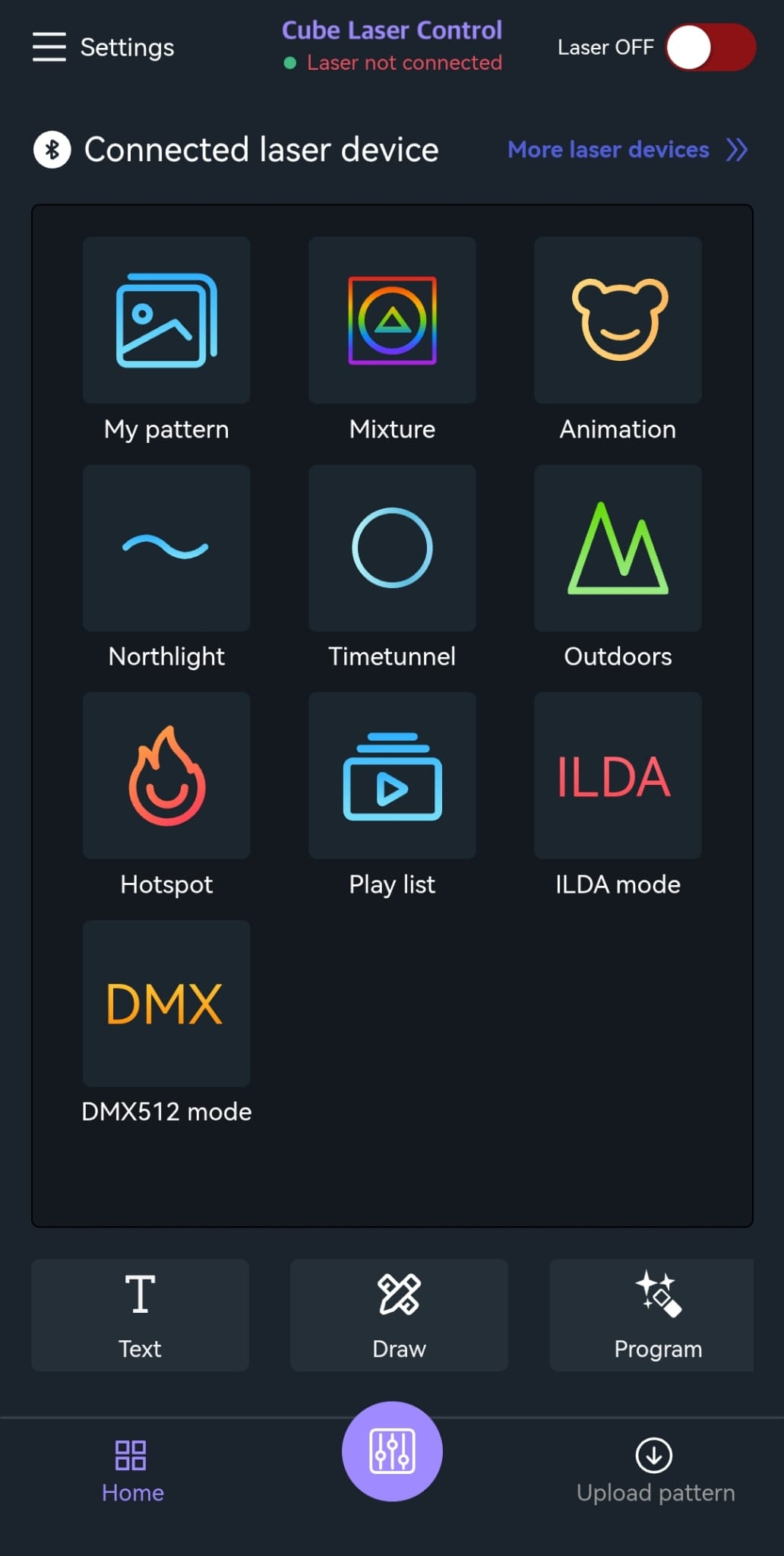
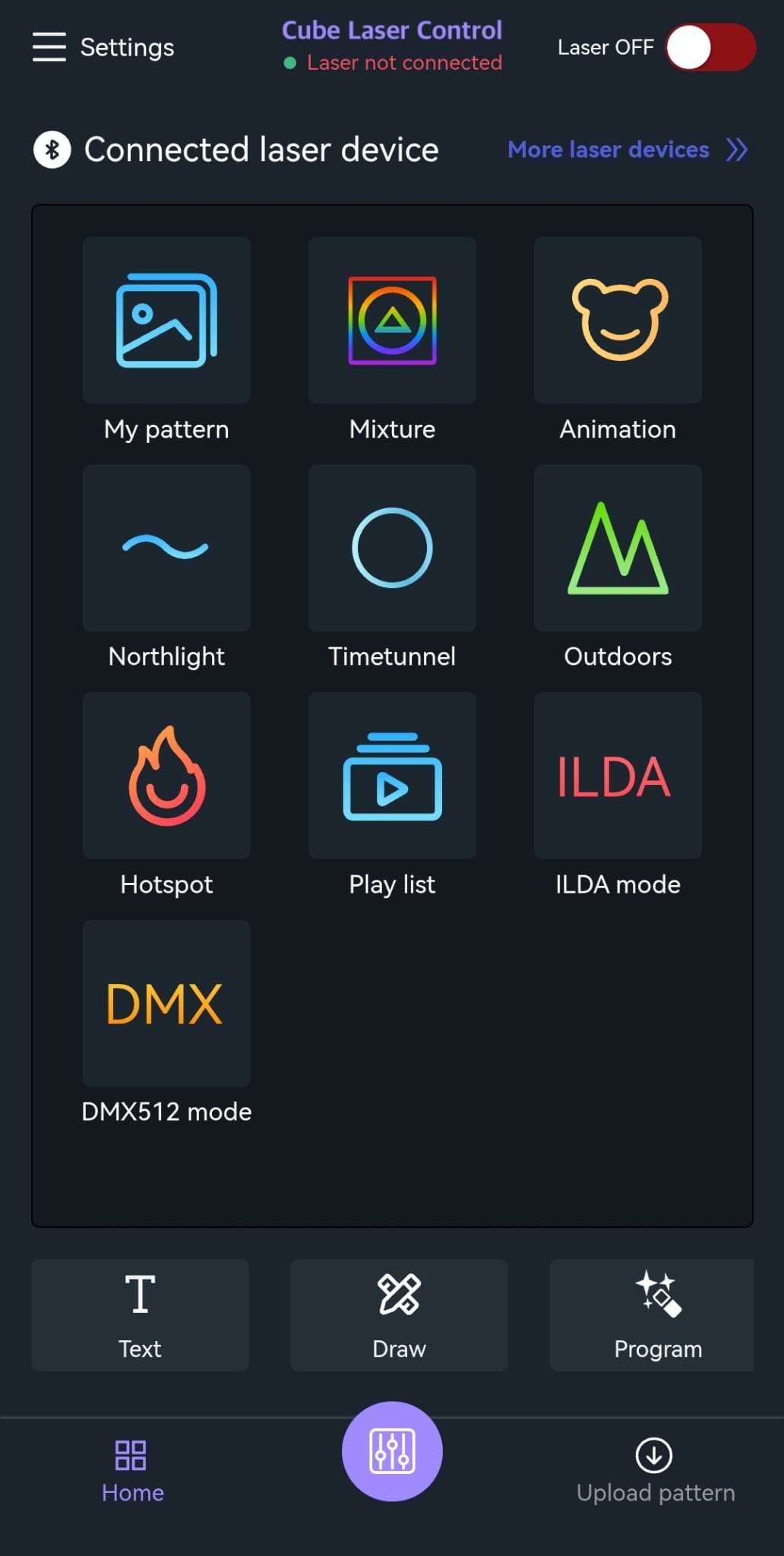
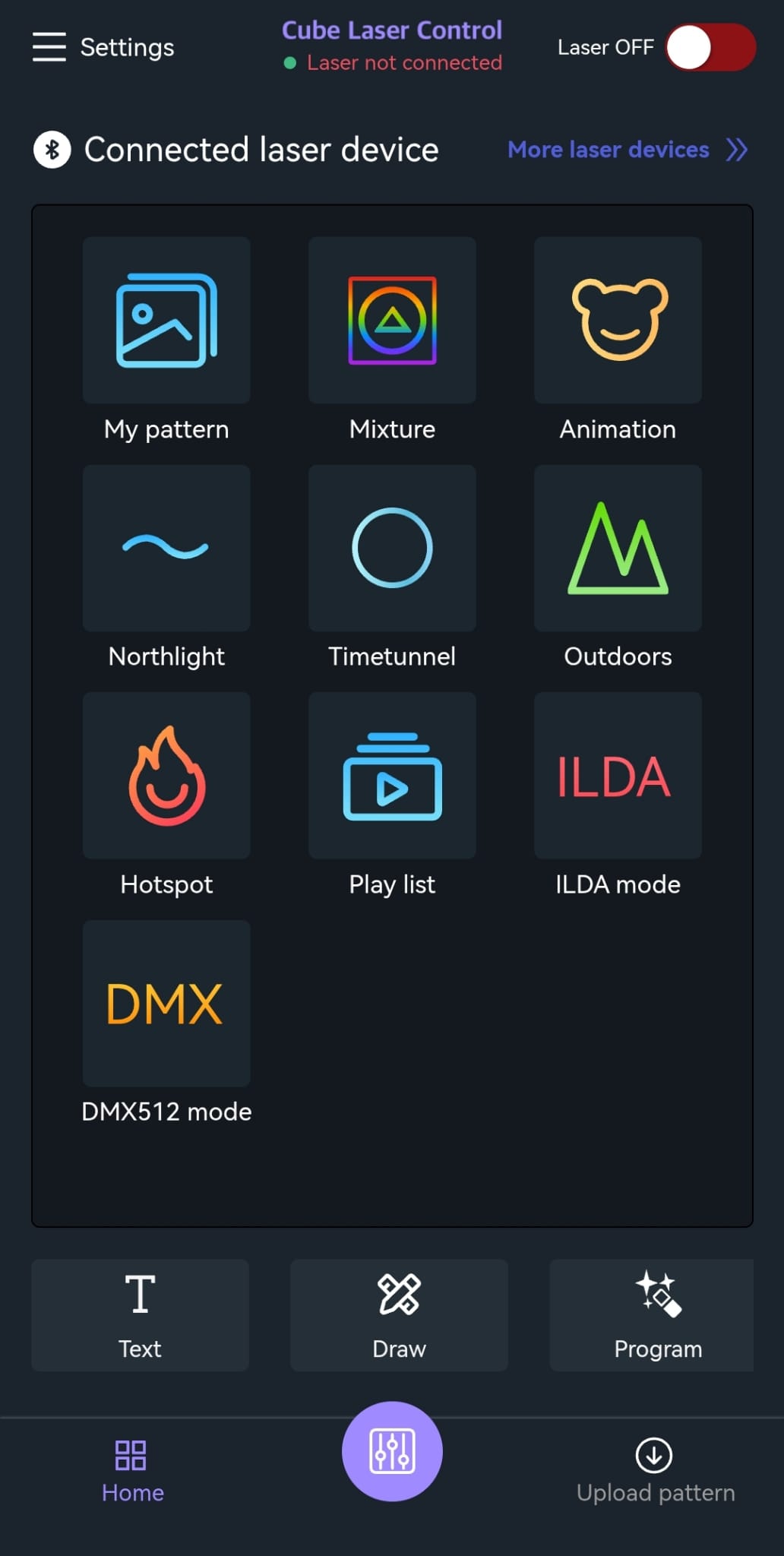
- Tap the purple button at the bottom center of the screen.
- Select “Size”.
- The slider can be moved from left to right; alternatively, the +/– buttons can be used.
- X and Y scaling can be adjusted independently.
Positioning
- Tap the purple button at the bottom center of the screen.
- Select “Position”.
- The slider can be moved from left to right; alternatively, the +/– buttons can be used.
- X and Y positioning can be adjusted independently.
Color
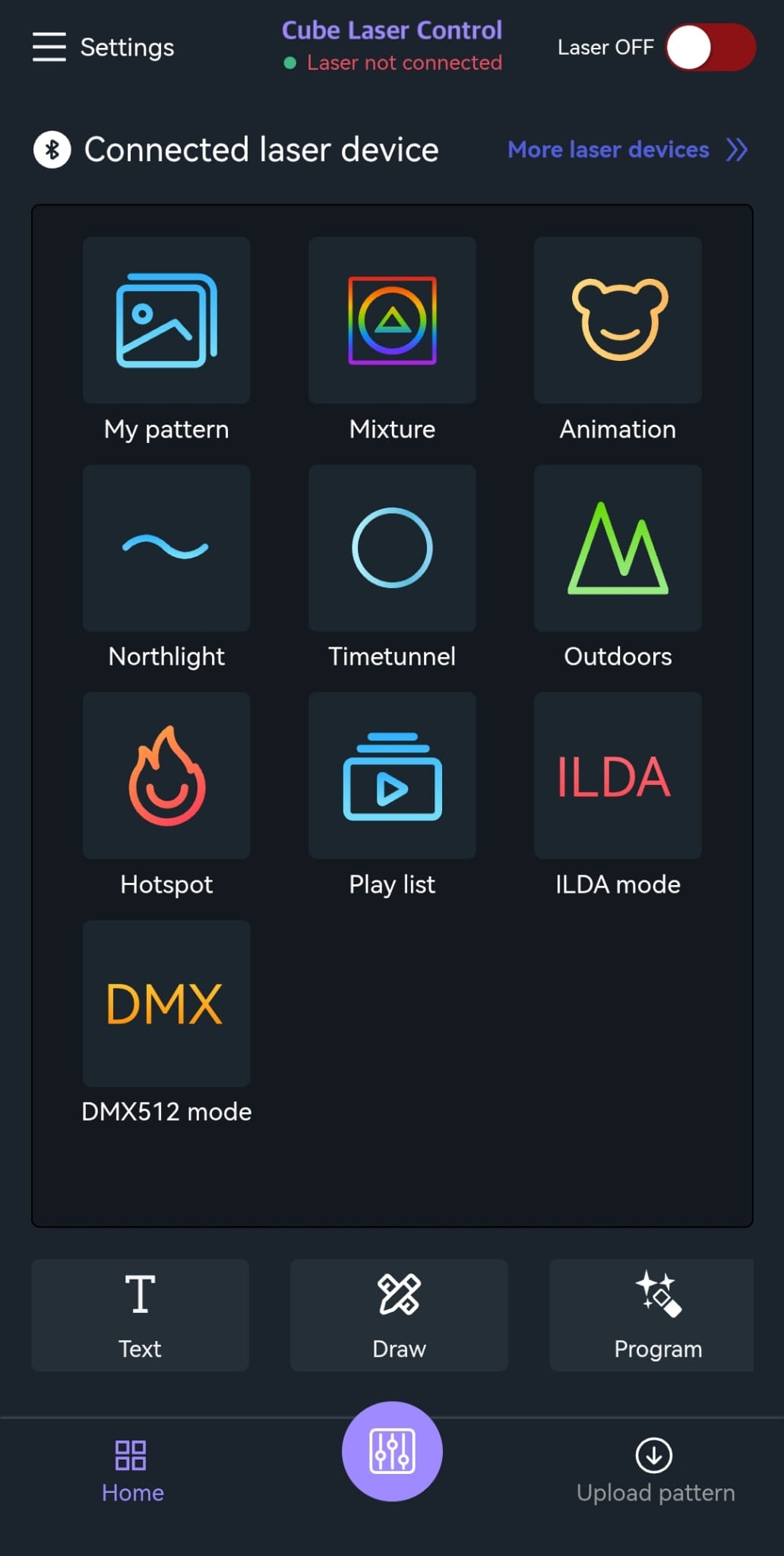
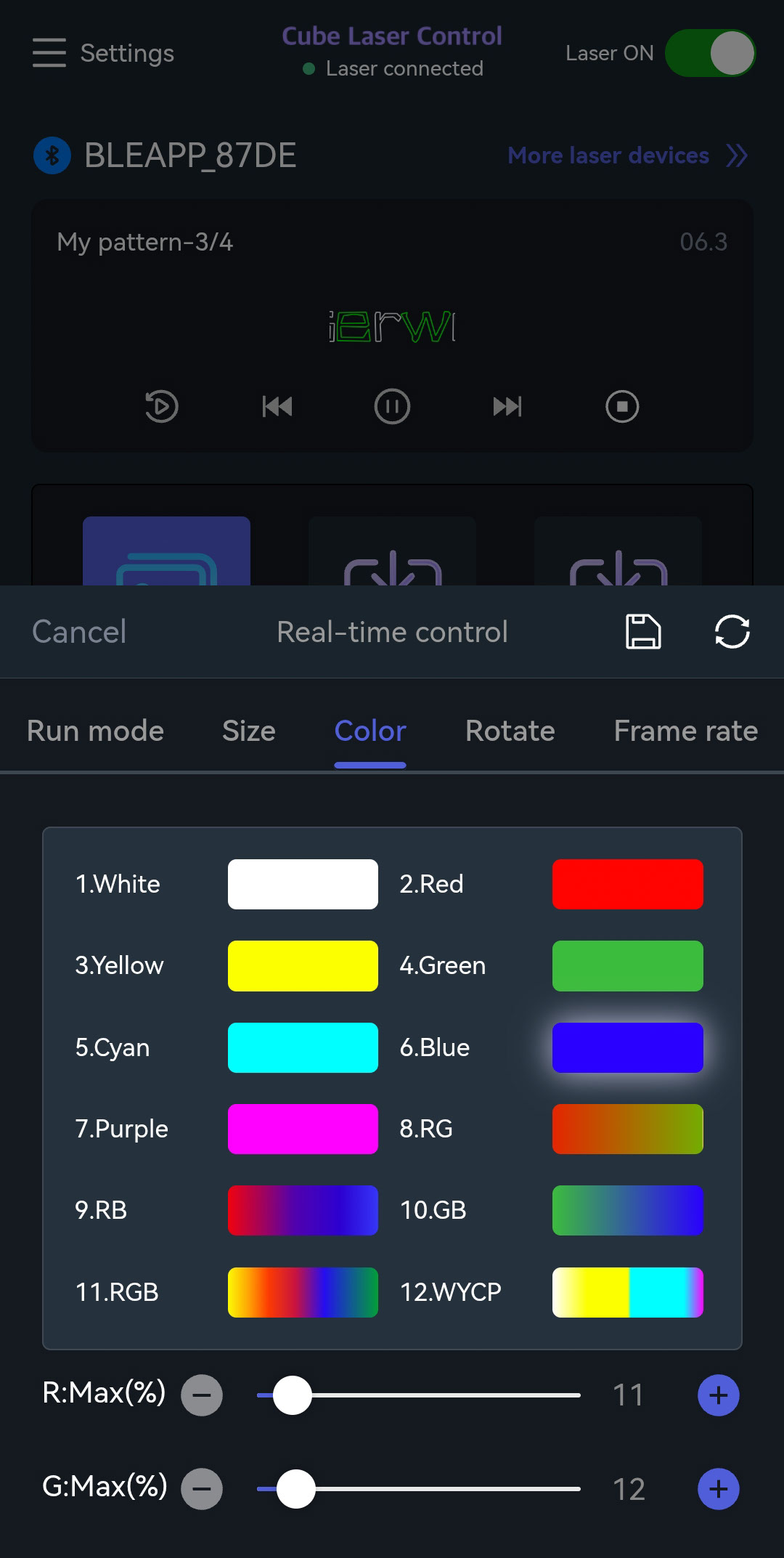
- Tap the purple button at the bottom center of the screen.
- Select “Color”.
- Chose a color.
- Adjust the intensity using the slider.
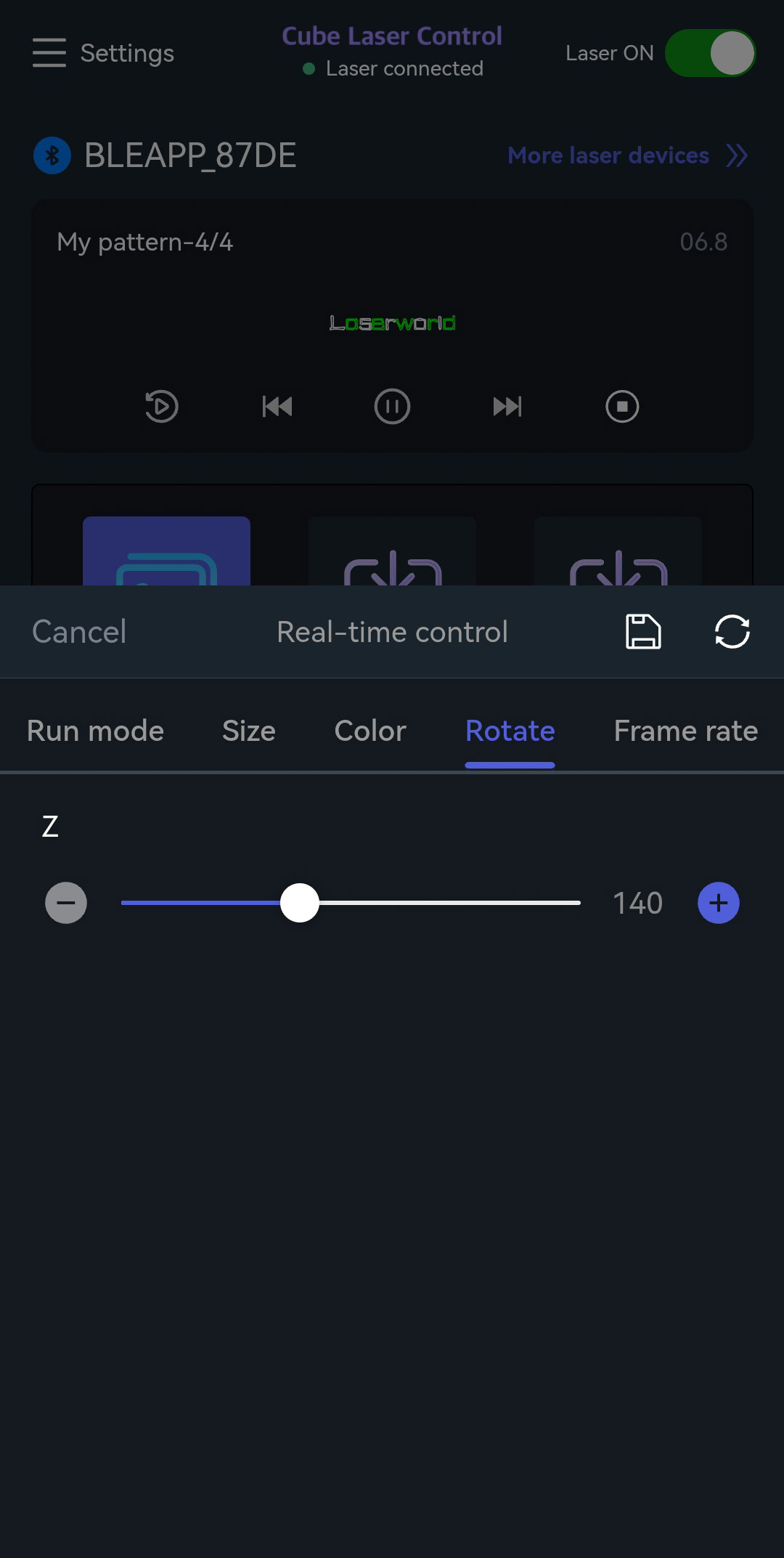
Rotation
- Tap the purple button at the bottom center of the screen.
- Select “Rotation”.
- Use the slider to adjust rotation and rotation speed.
Frame Rate
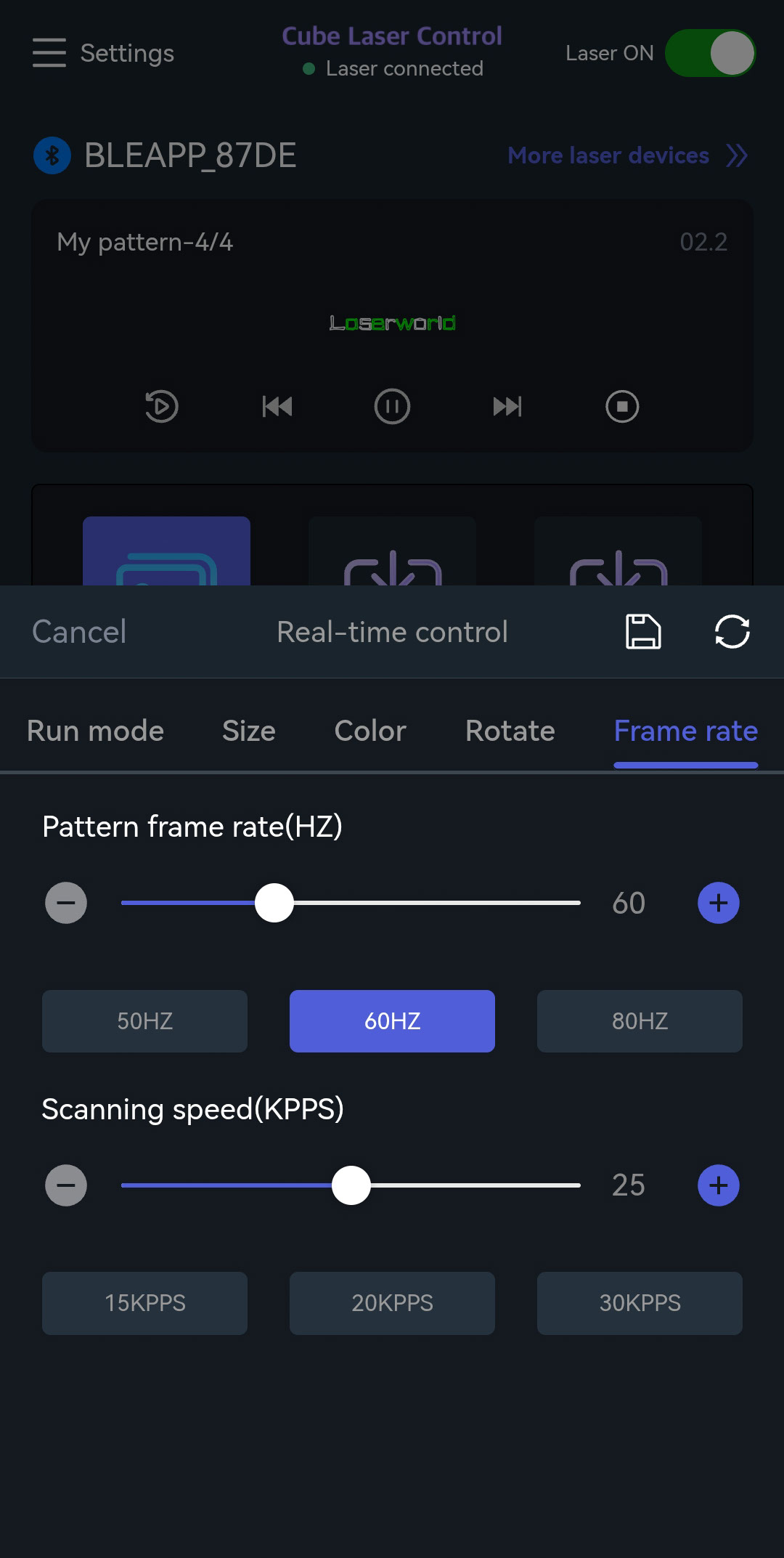
- Tap the purple button at the bottom center of the screen.
- Select “Frame Rate”.
- The pattern frame can be selected and adjusted.
- Scan speed in Kpps can be selected and adjusted.
Laser Device Settings
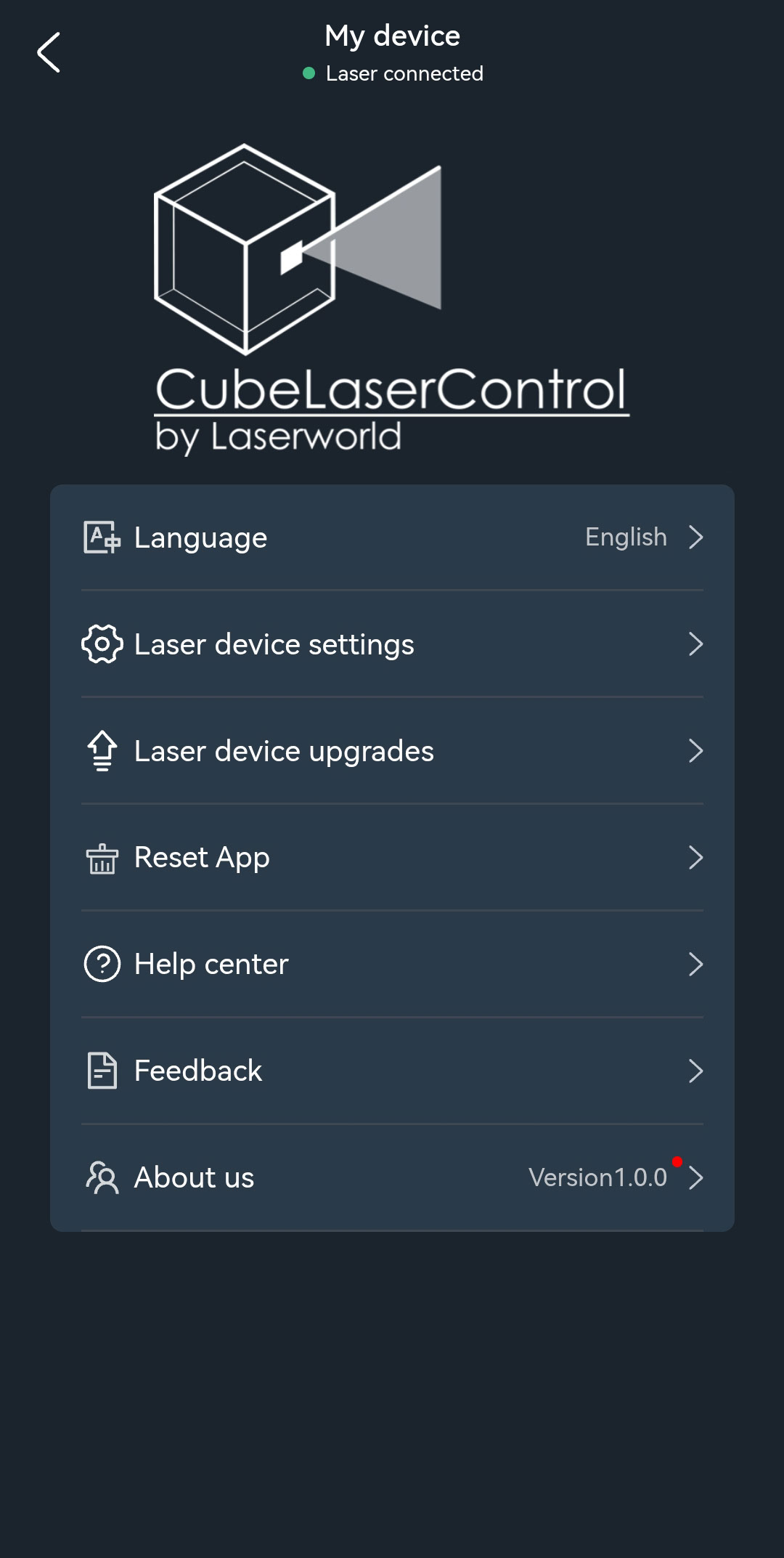
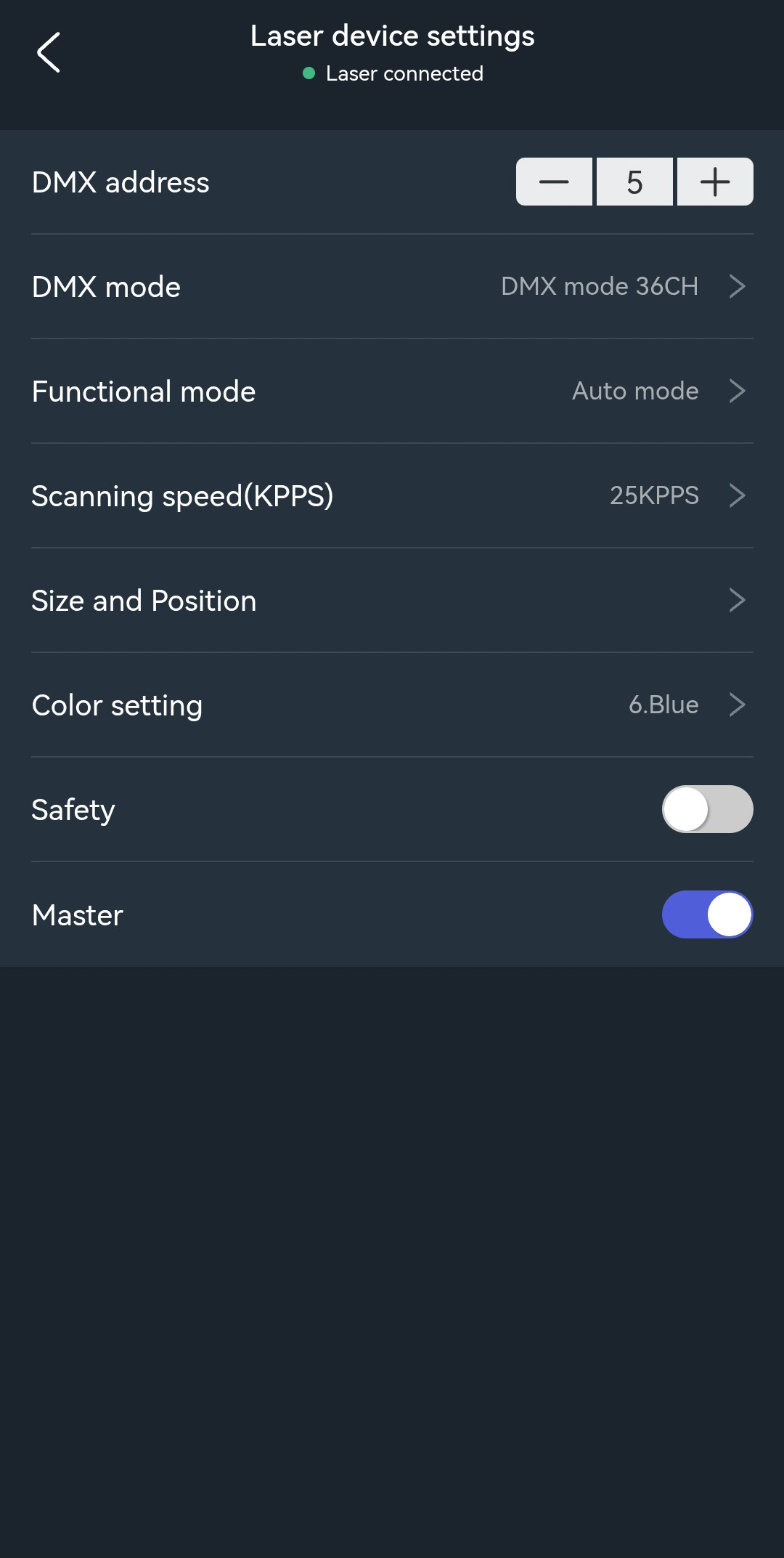
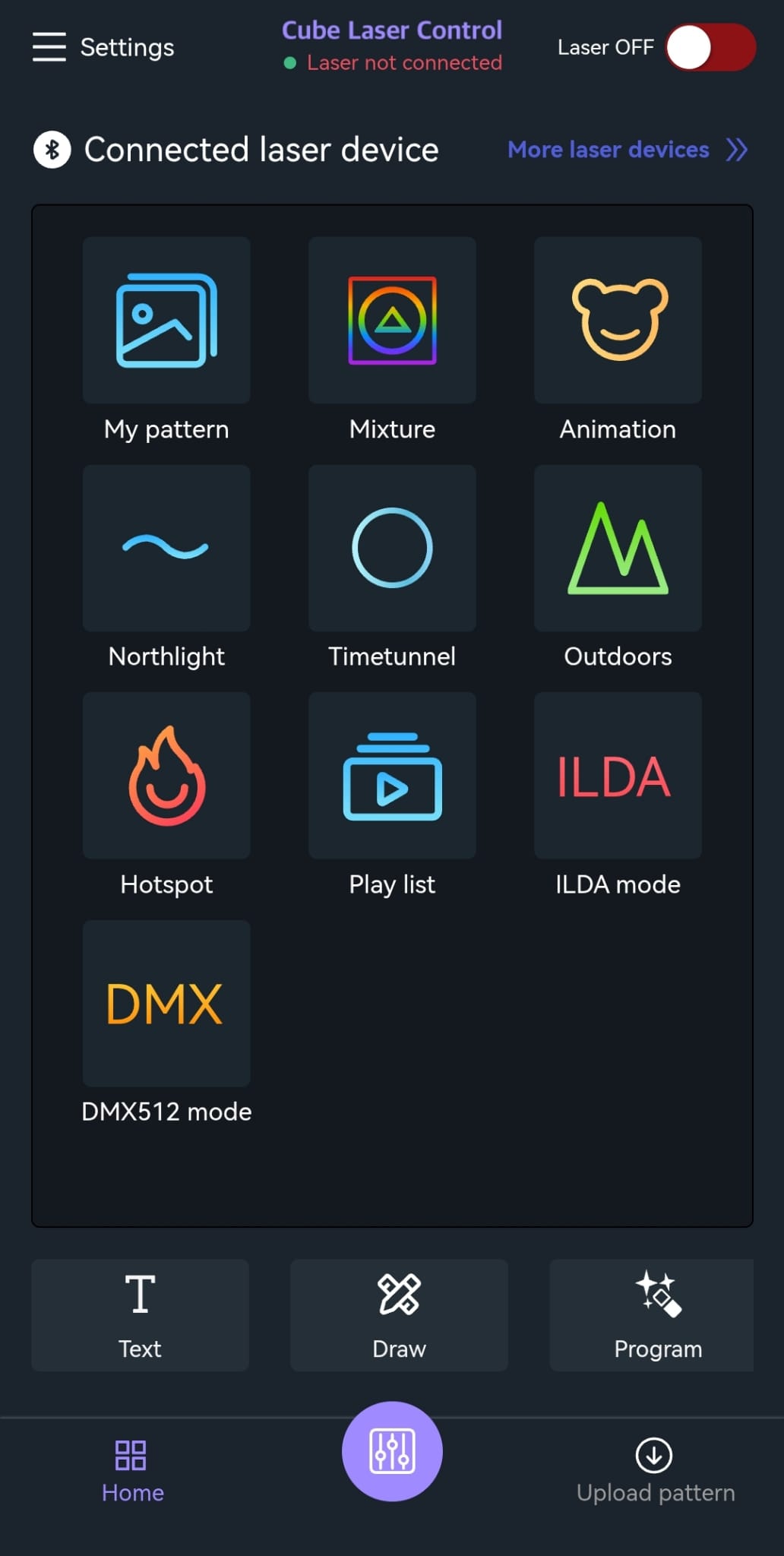
- Open “Settings” in the top-left corner and select “Laser Device Settings”.
- Select various modes (Auto, DMX, etc.), KPPS, size, position, colors, safety settings, and the master mode (for master/slave operation).