



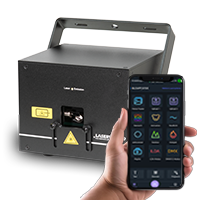


Create Custom Content, make own Texts, Logos and Animations
Create Your Own Text / Custom Text
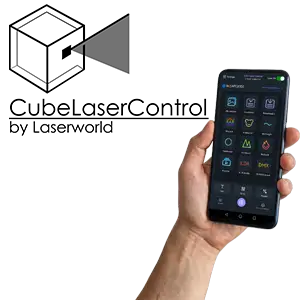
With the Cube Laser Control App, it is easy to create short custom texts and adjust them individually.
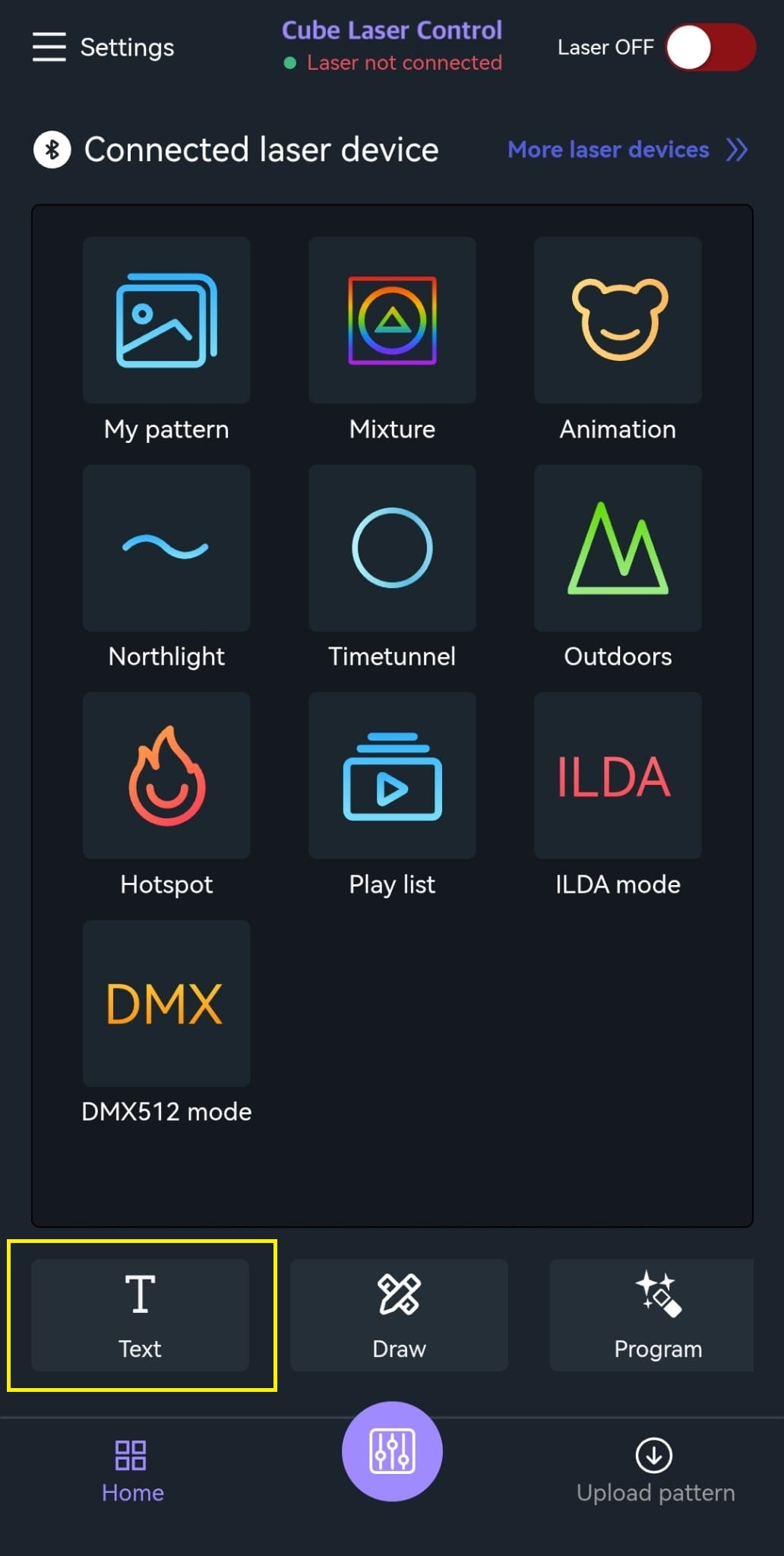
- Tap "Text" at the bottom left.
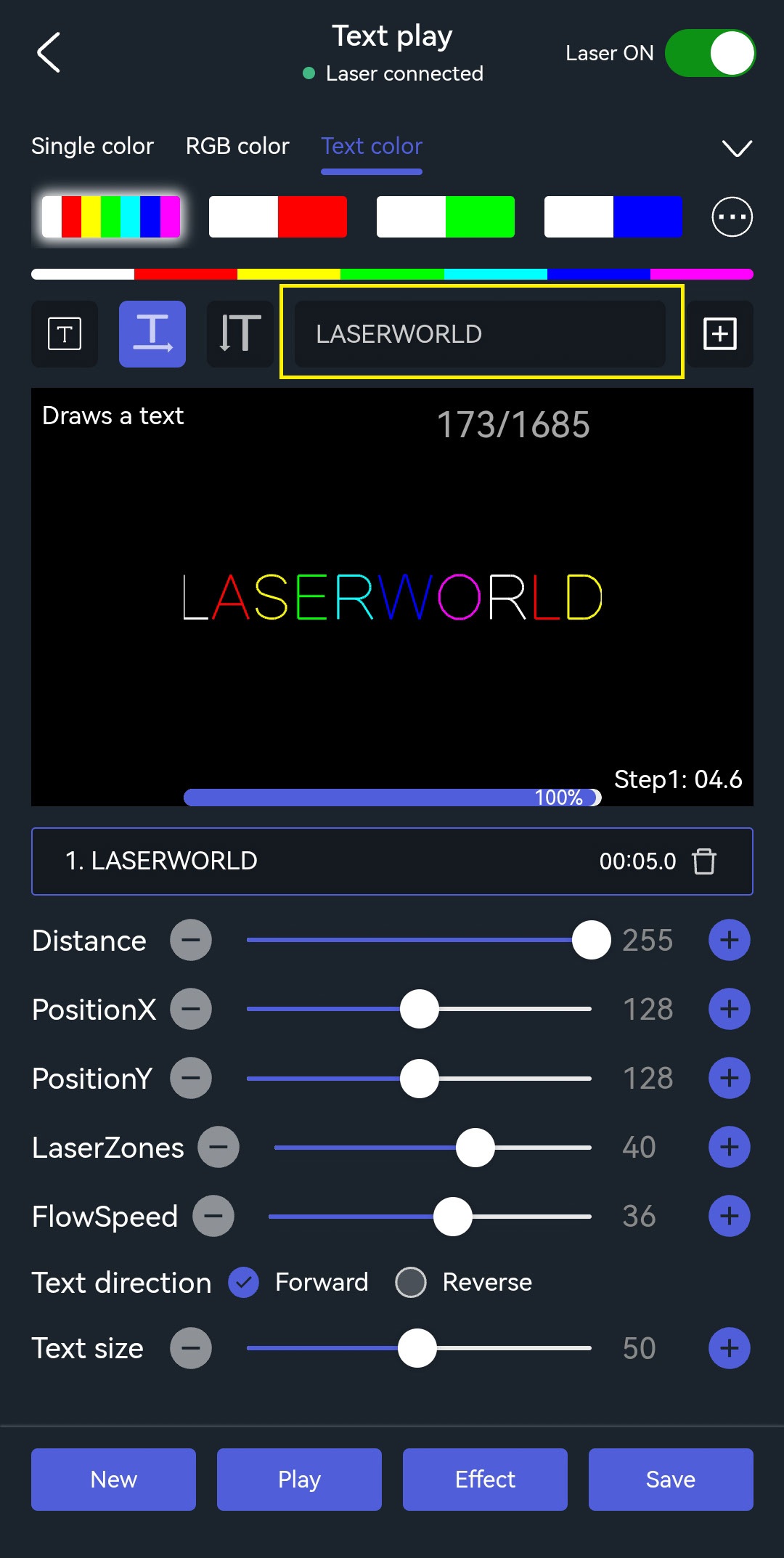
- Tap the black input field next to the plus symbol at the top right.
- Enter the desired text.
- Adjust the text parameters as needed, like color, size, or position.
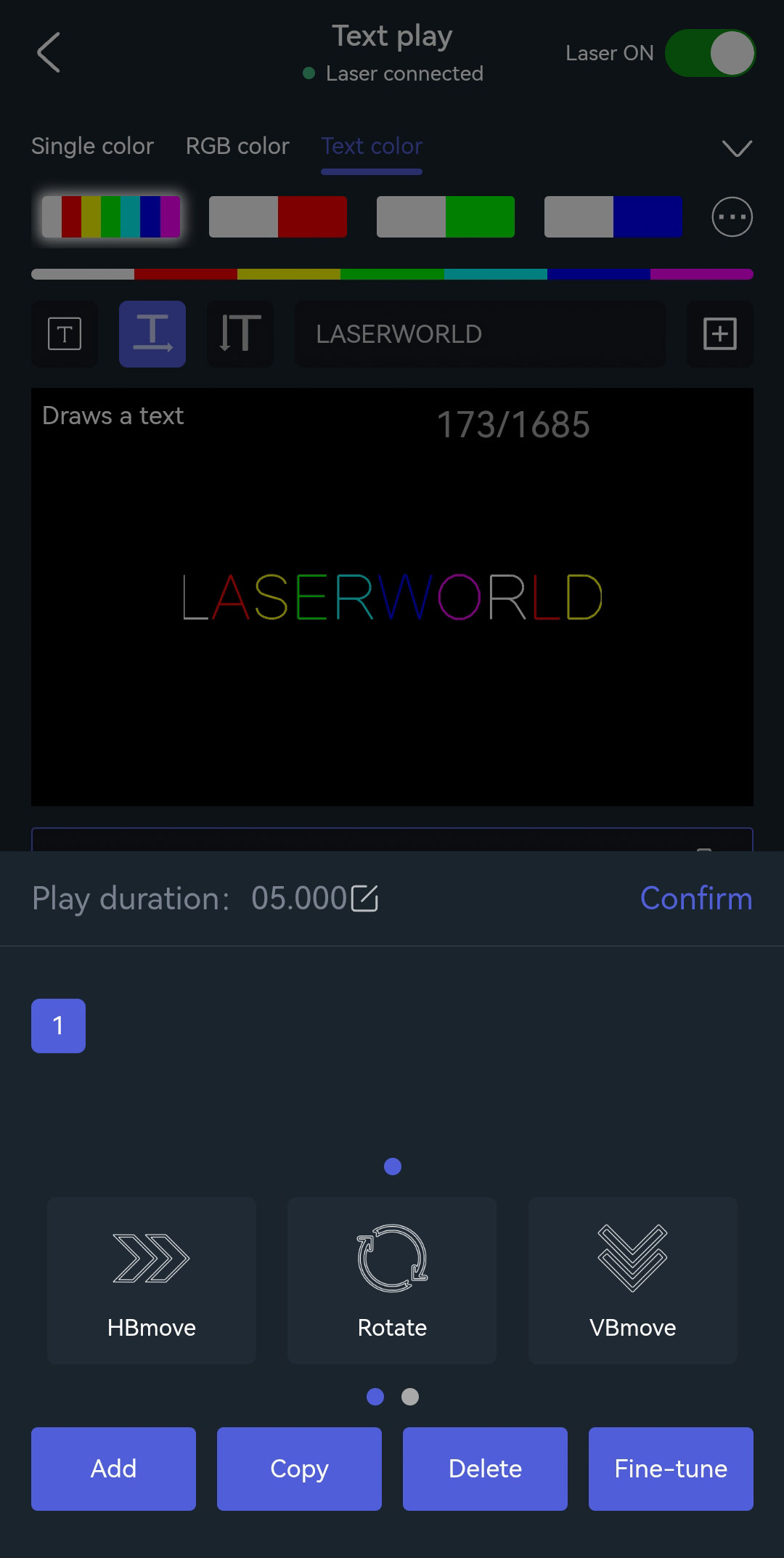
- Use the "Effect" button at the bottom to apply additional effects.
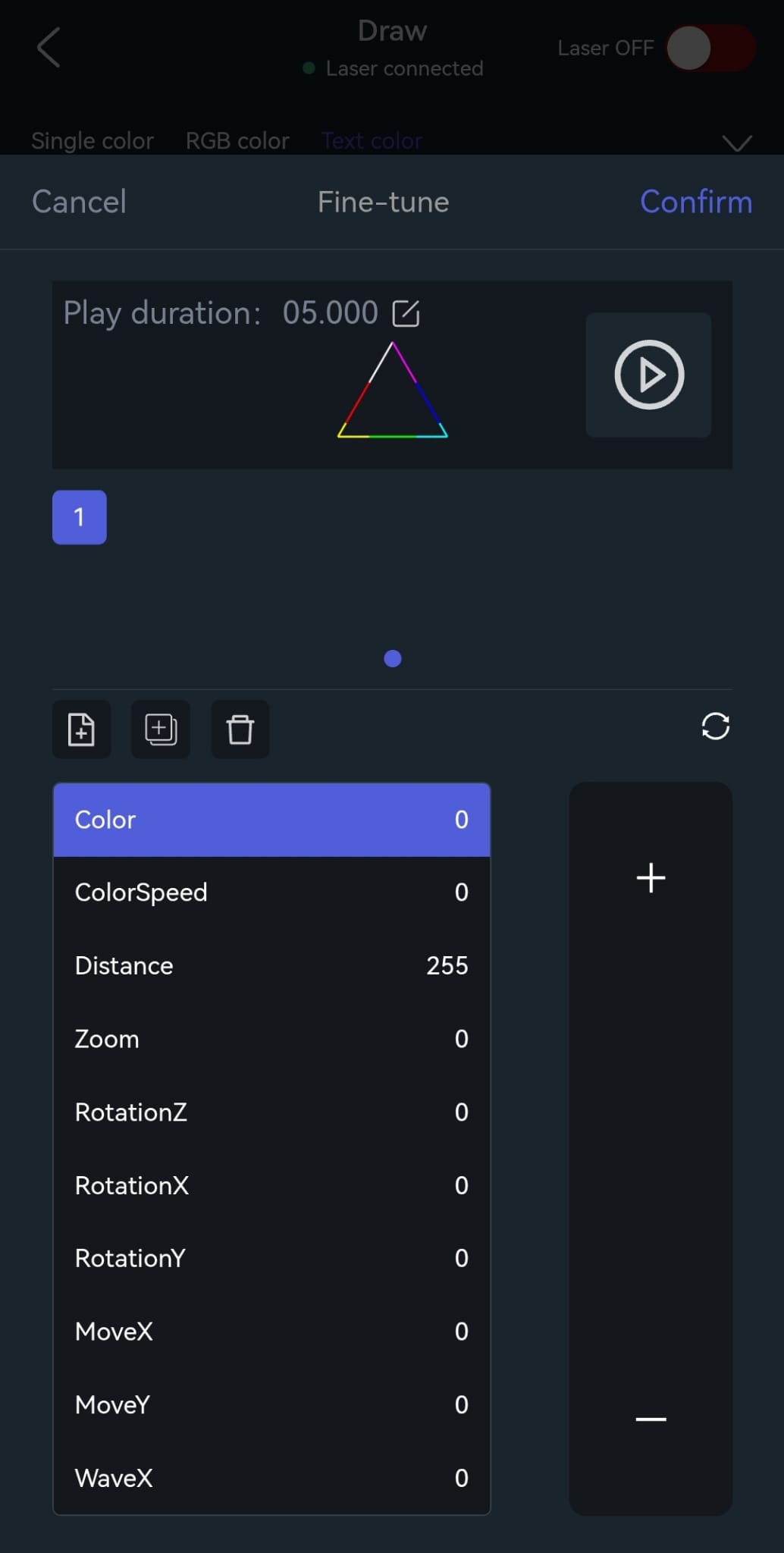
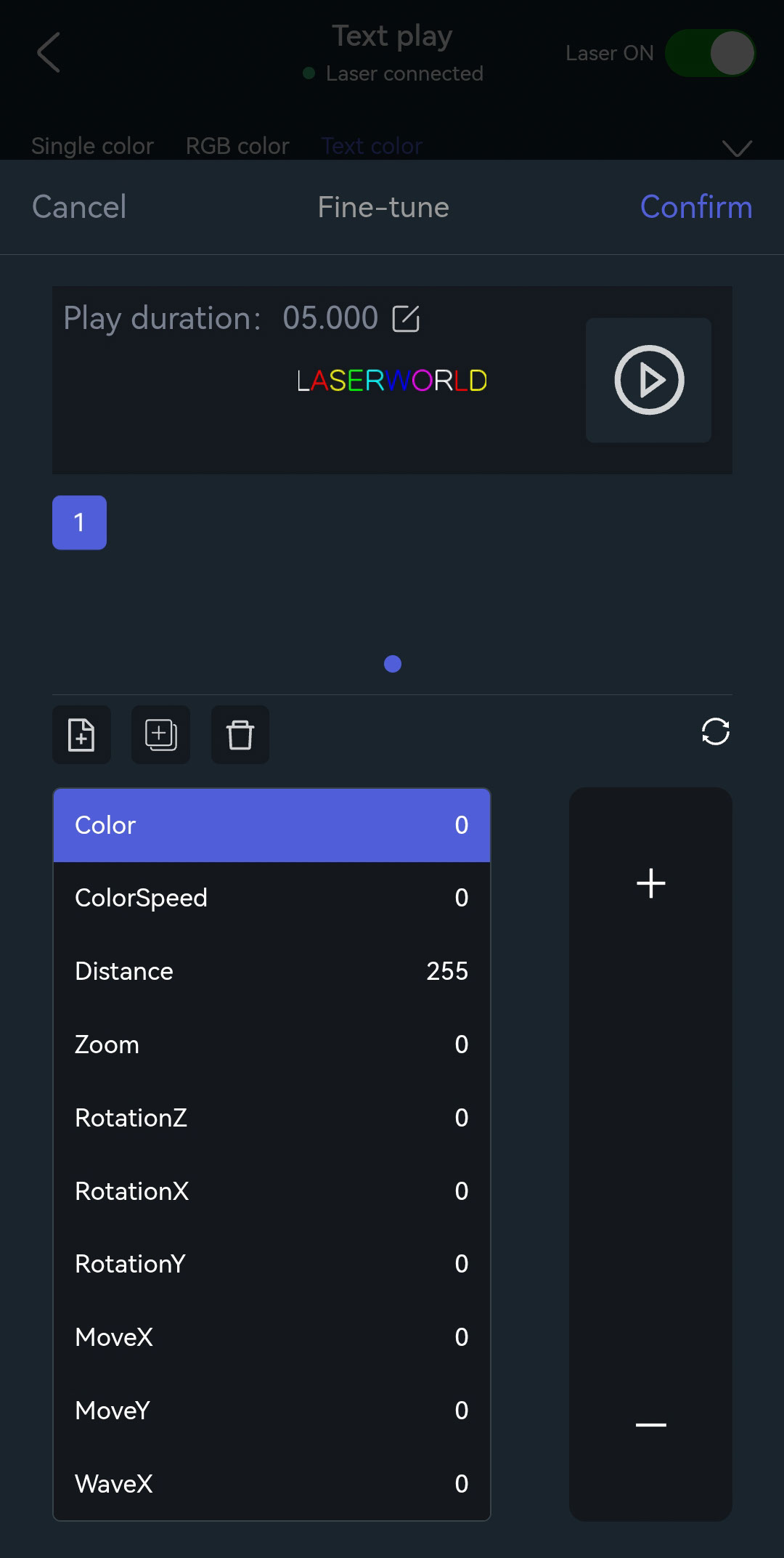
- "Fine-tune" allows for further refining of these settings and saving them.
Upload Logos / Convert or Trace Images
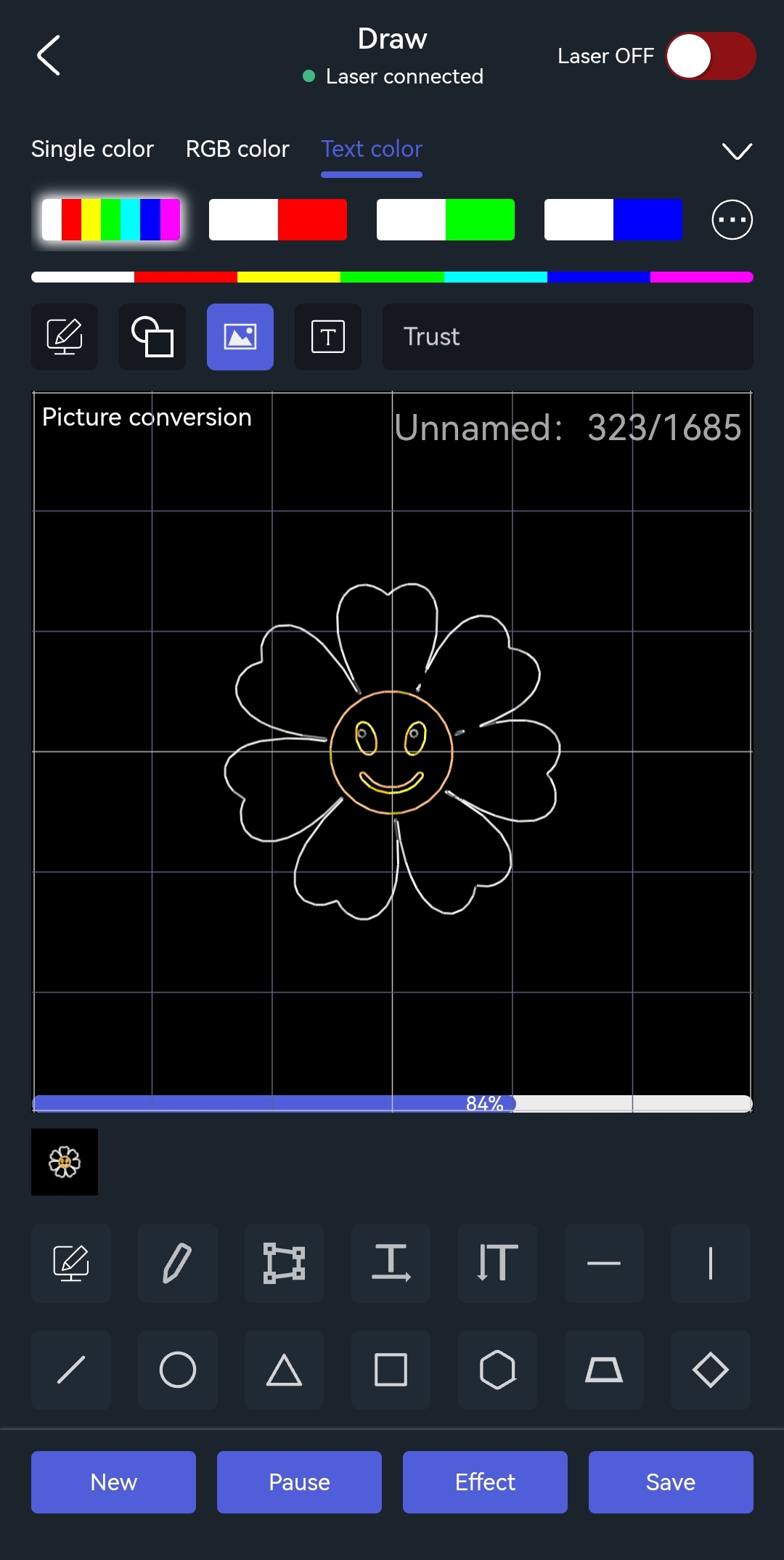
It is possible to import own / custom logos or images, and trace them directly in the app.
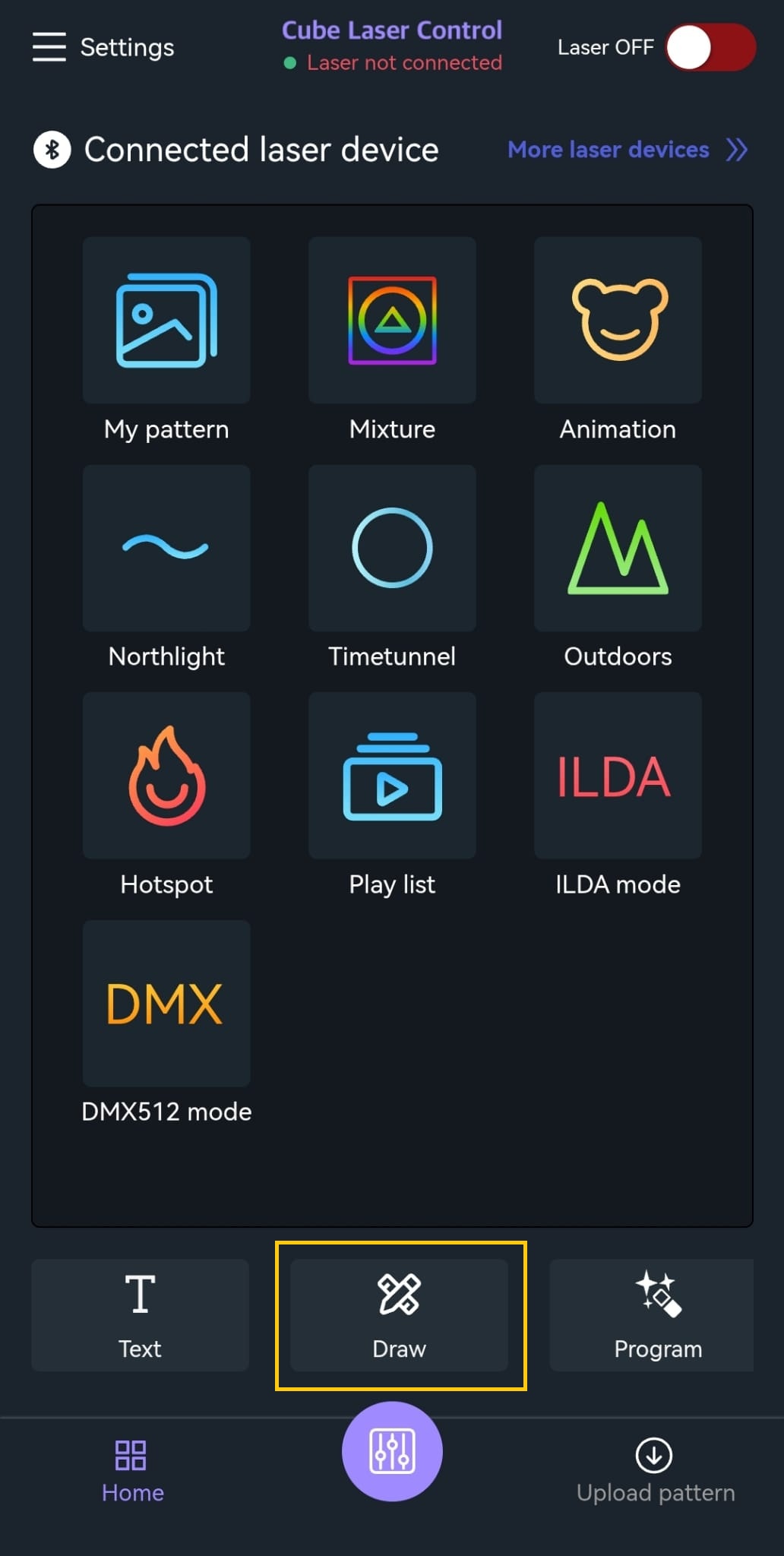
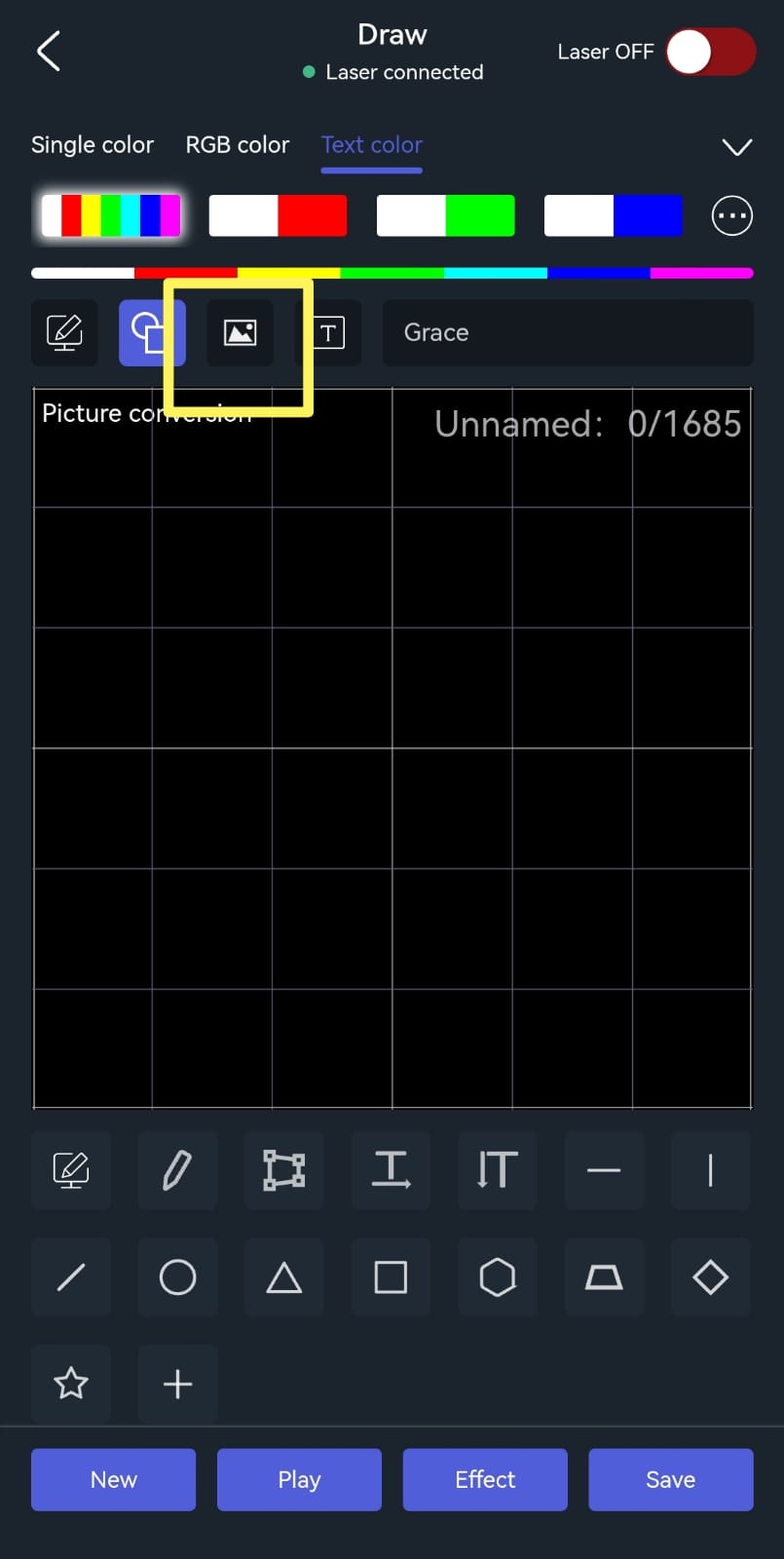
- Tap "Draw" at the bottom center.
- Select the icon for import (landscape icon).
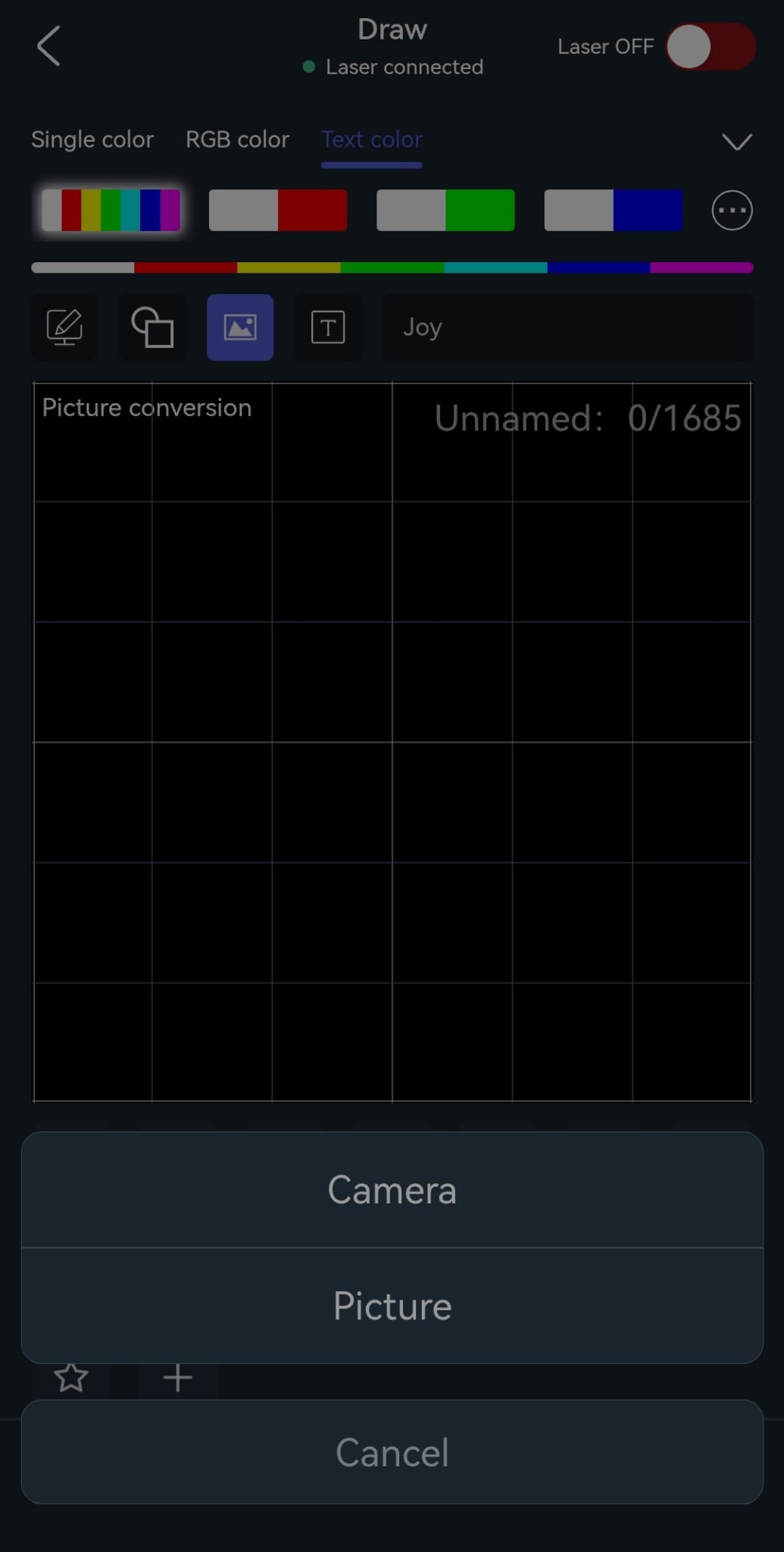
- Choose either an existing image from your device (e.g., a logo) or create a new image using the camera.
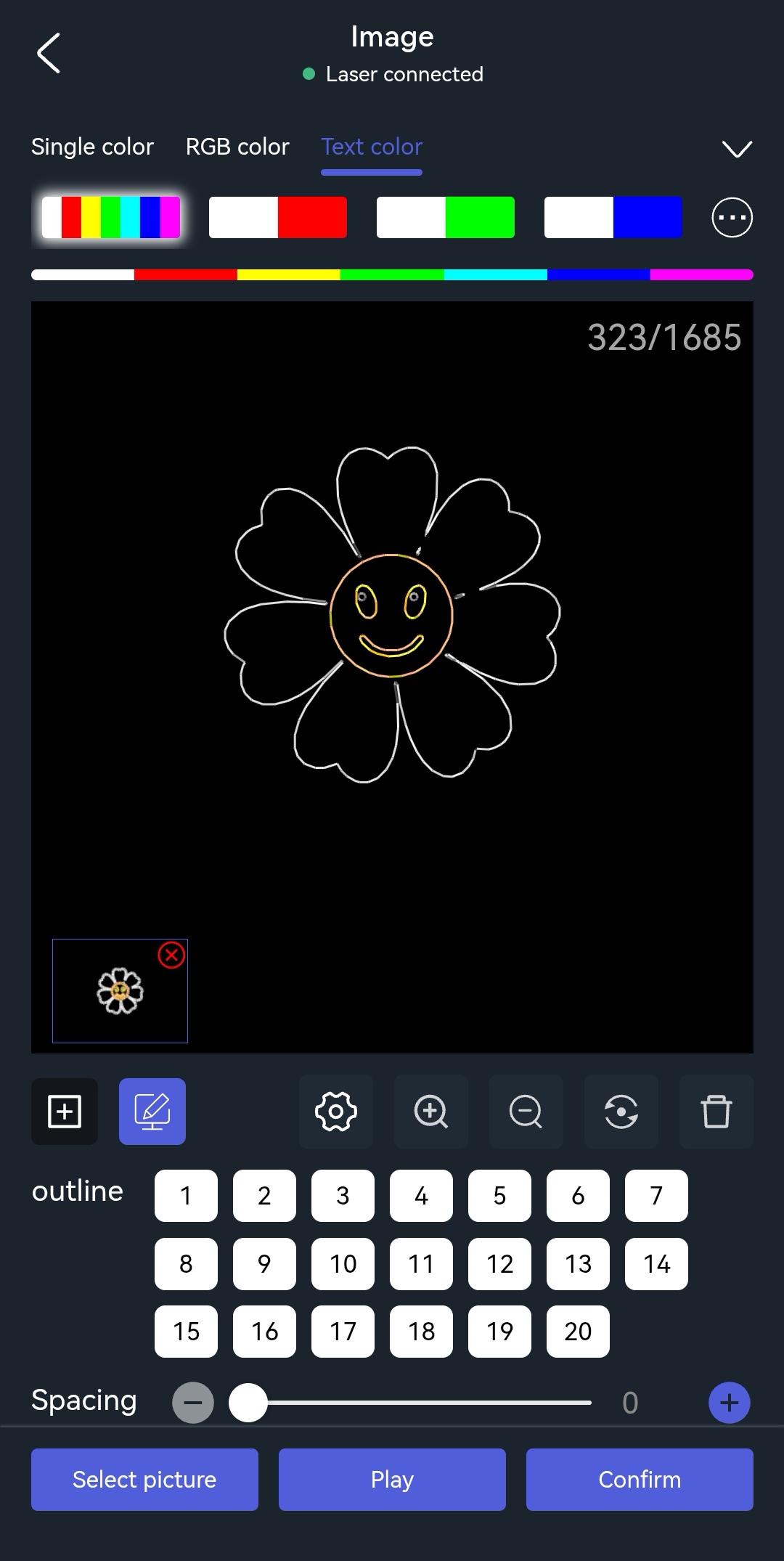
- Edit the image as needed and save it. It is possible to apply various optimizations to improve quality. In general it is advised to use as few points as possible to avoid flicker of the display. Avoid point number count higher than 500.
Draw Custom Graphics / Logos for Laser Output
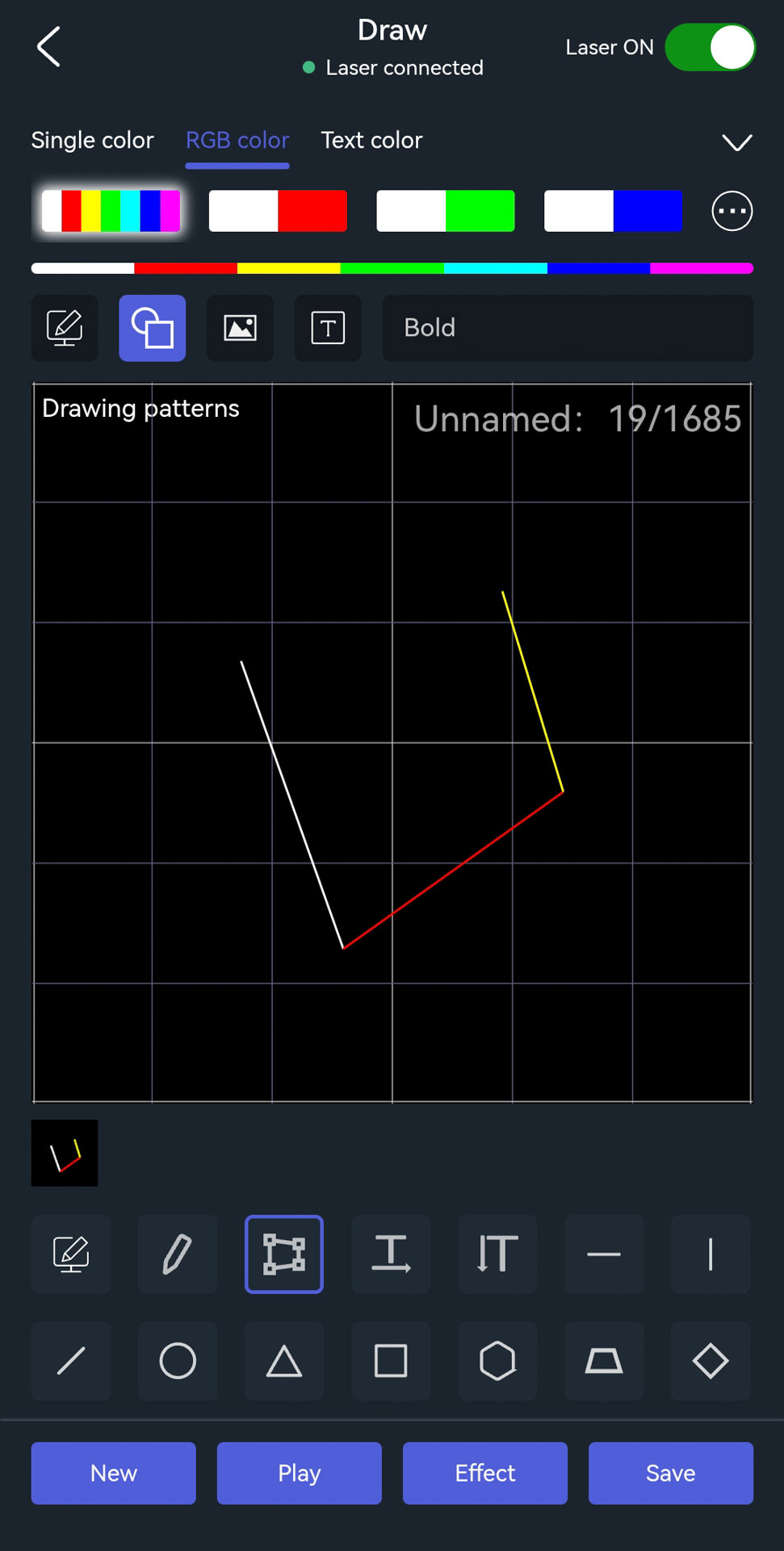
Create individual, customized content by hand-drawing or scribbling it in the app:
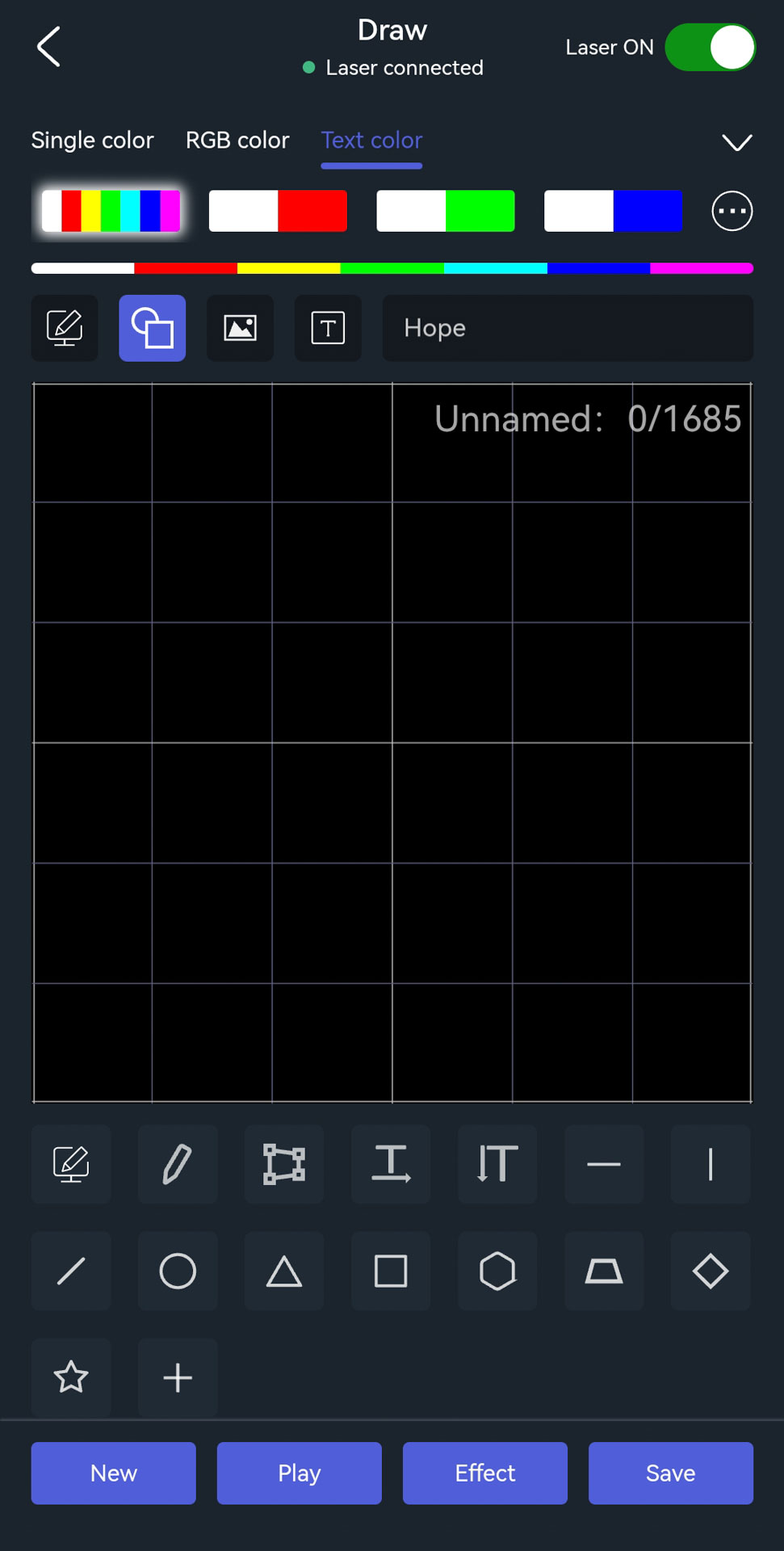
- Tap "Draw" at the bottom center.
- Choose either a standard shape, line, or draw a pattern freehand.
- Adjust the pattern as needed, for example, color, size, or position.
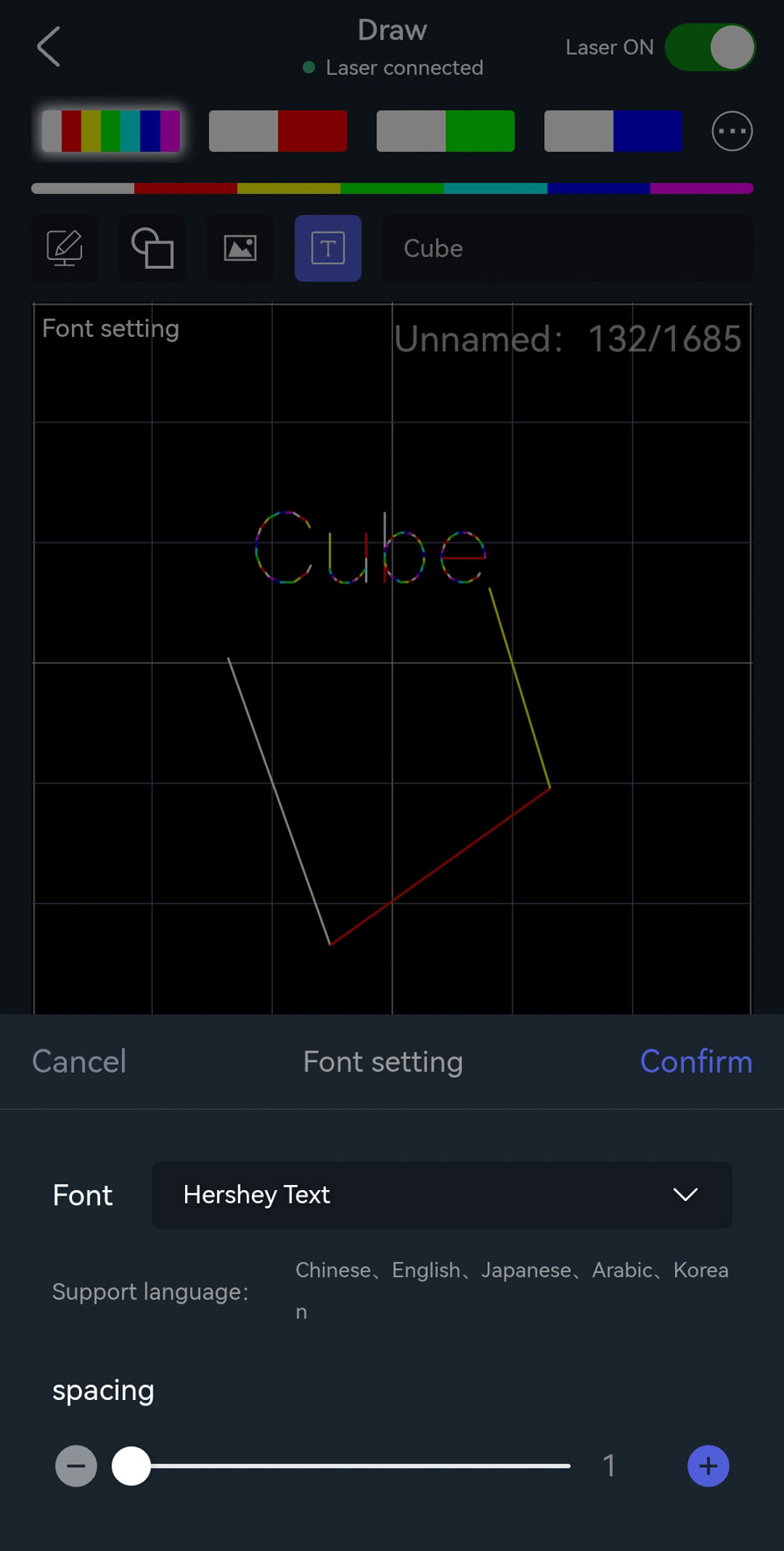
- Custom or built-in patterns can also be combined with custom texts in the "Draw" dialog.
Create Custom Animations and Dynamic Effects
Patterns can also be animated in the Cube Laser Control App:
- Create or select a pattern (see previous section).
- Then tap "Effect."
- Choose the desired animation settings.
- In "Fine-tune" it is possible to further adjust the animations and save them.