










Playback content and patterns in the App
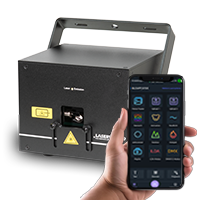
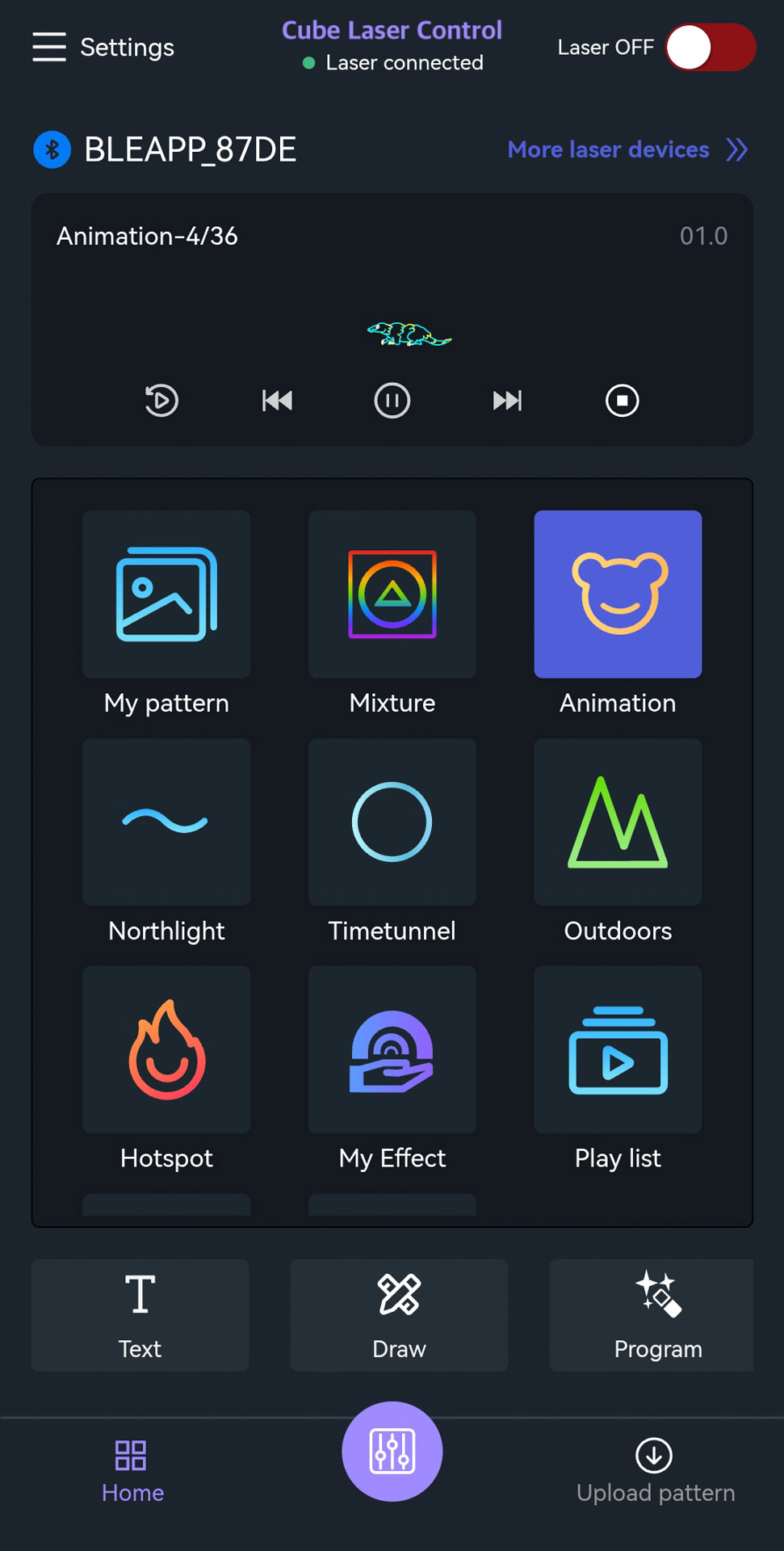
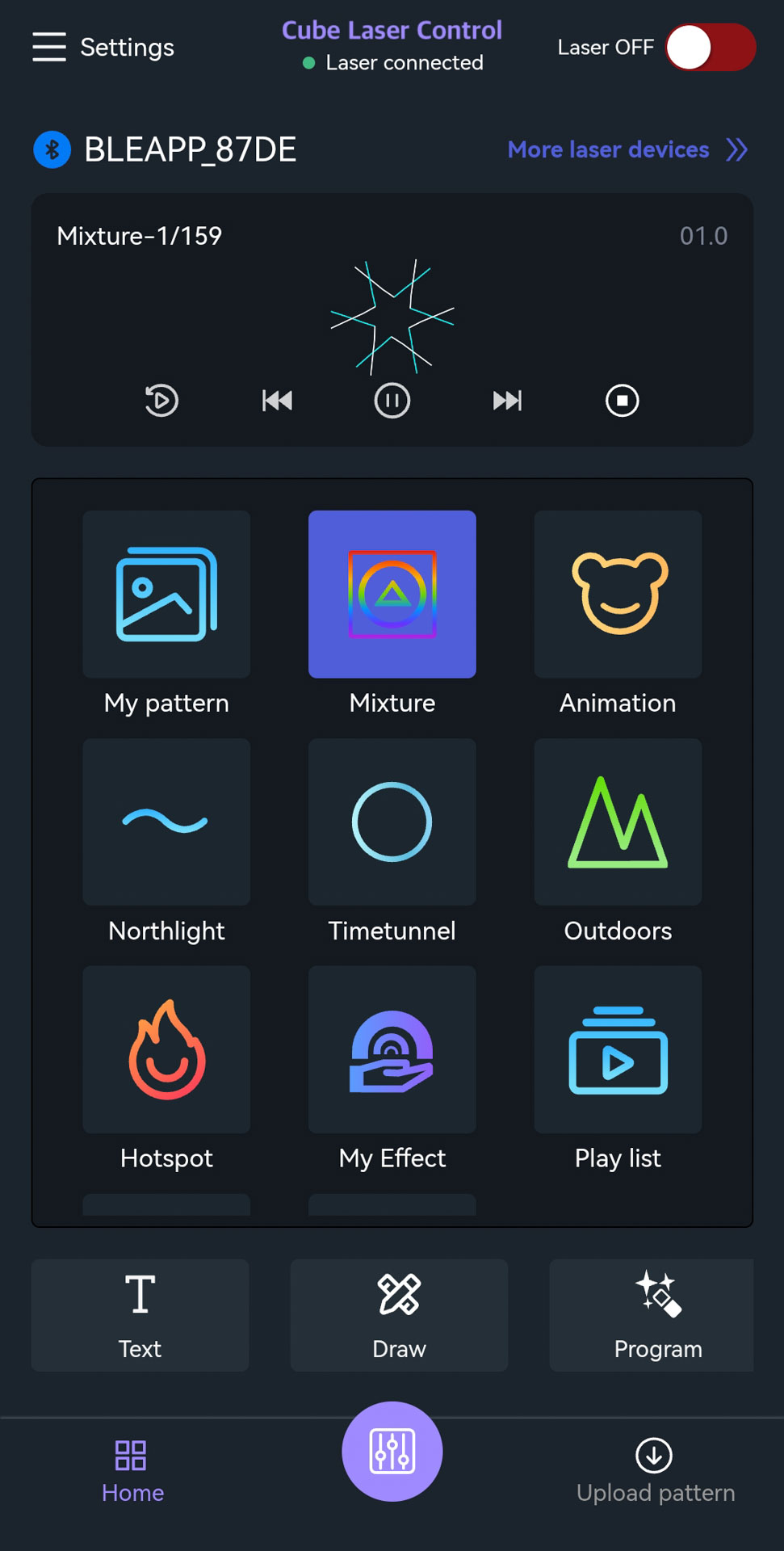
Several pattern categories are already preset on the home screen.
The content is generally synchronized with the content in the laser system.
By tapping a category once, the patterns in that category start playing automatically and consecutively.
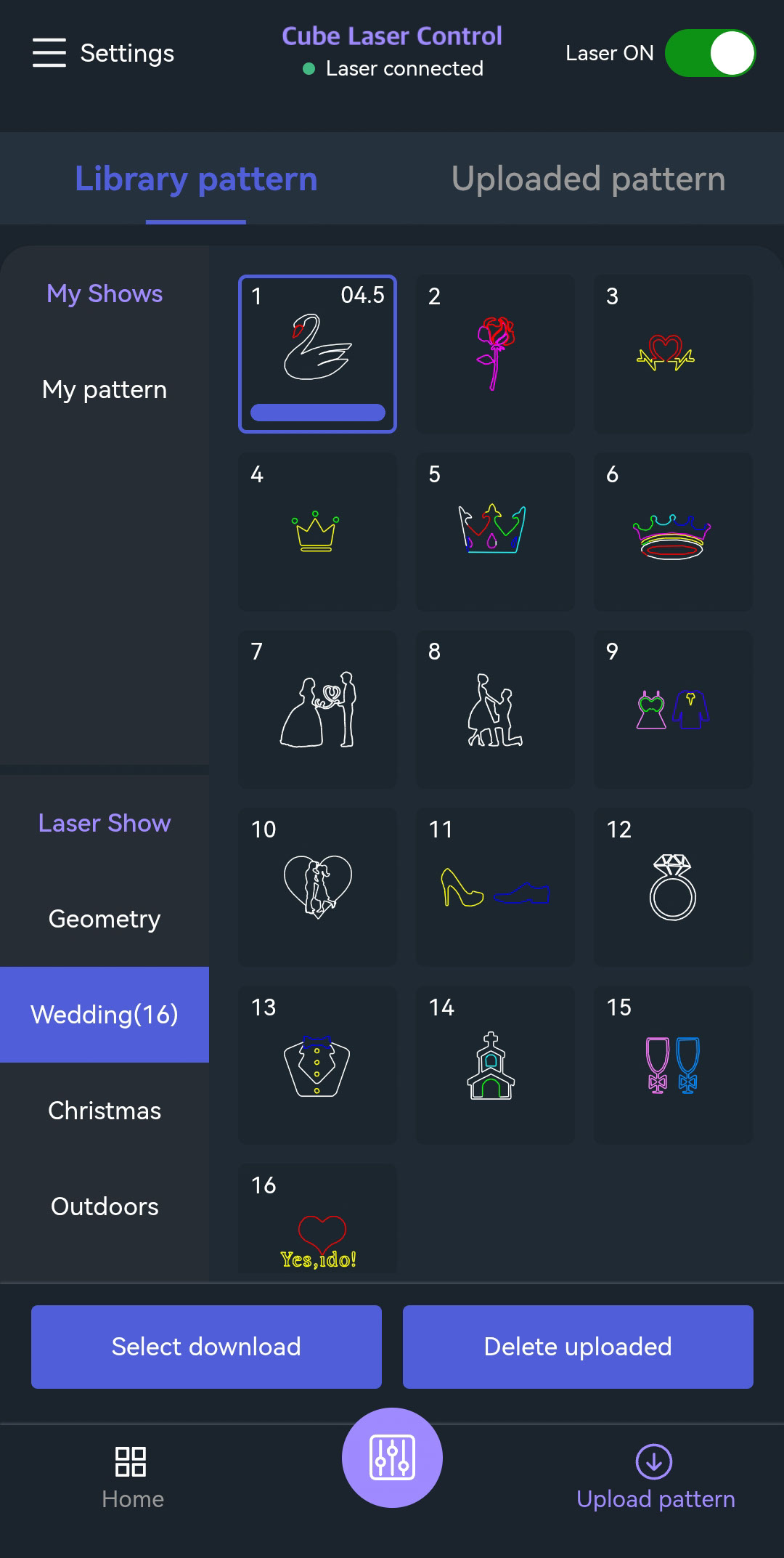
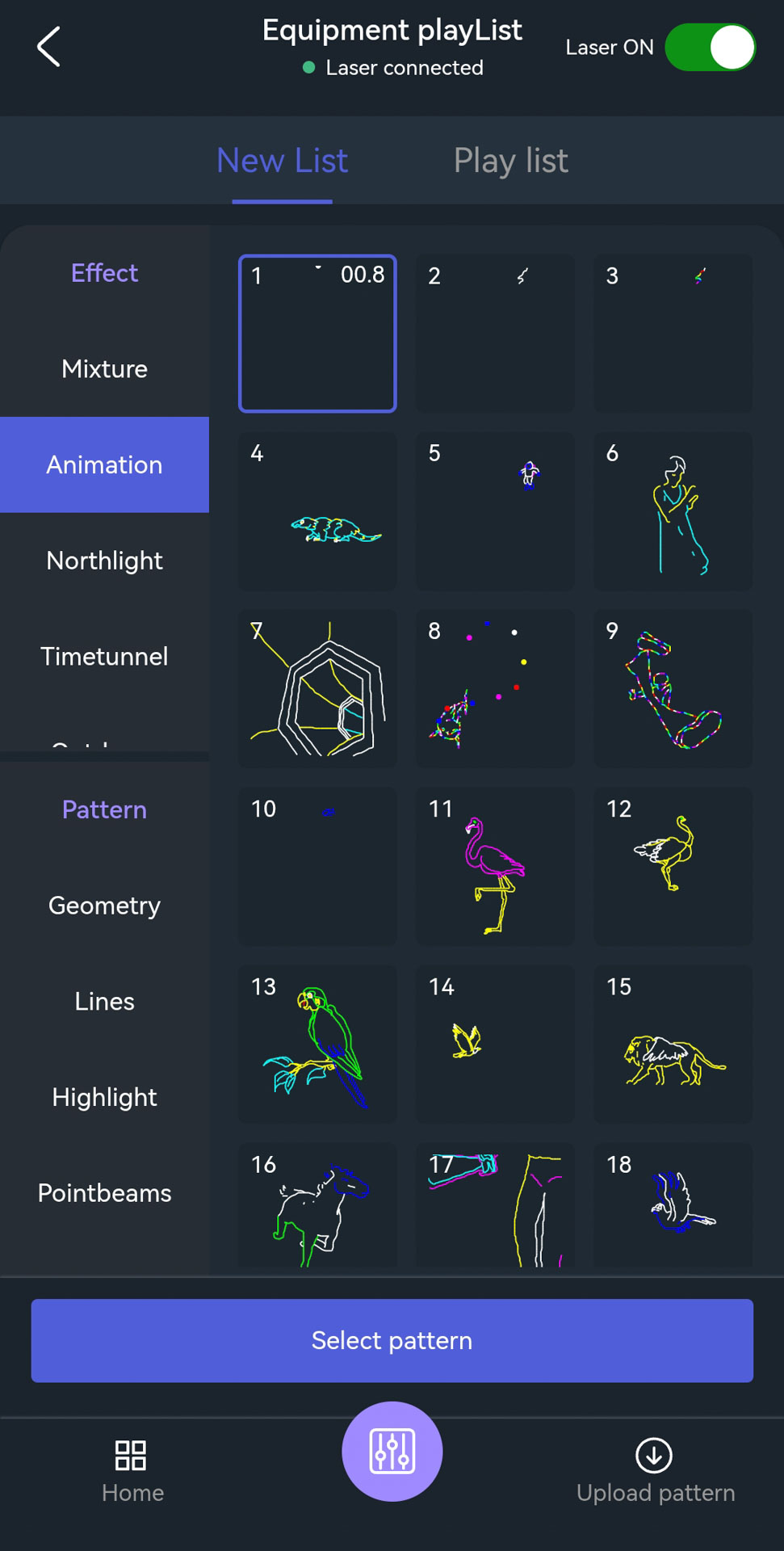
To browse patterns of a category or select a different pattern, double-tap the corresponding category icon.
This opens the selection of patterns inside the respective category.
Category Detail View
The category view gives various detailed configuration options:
- Patterns can be selected individually
- Patterns can be added to a custom playlist
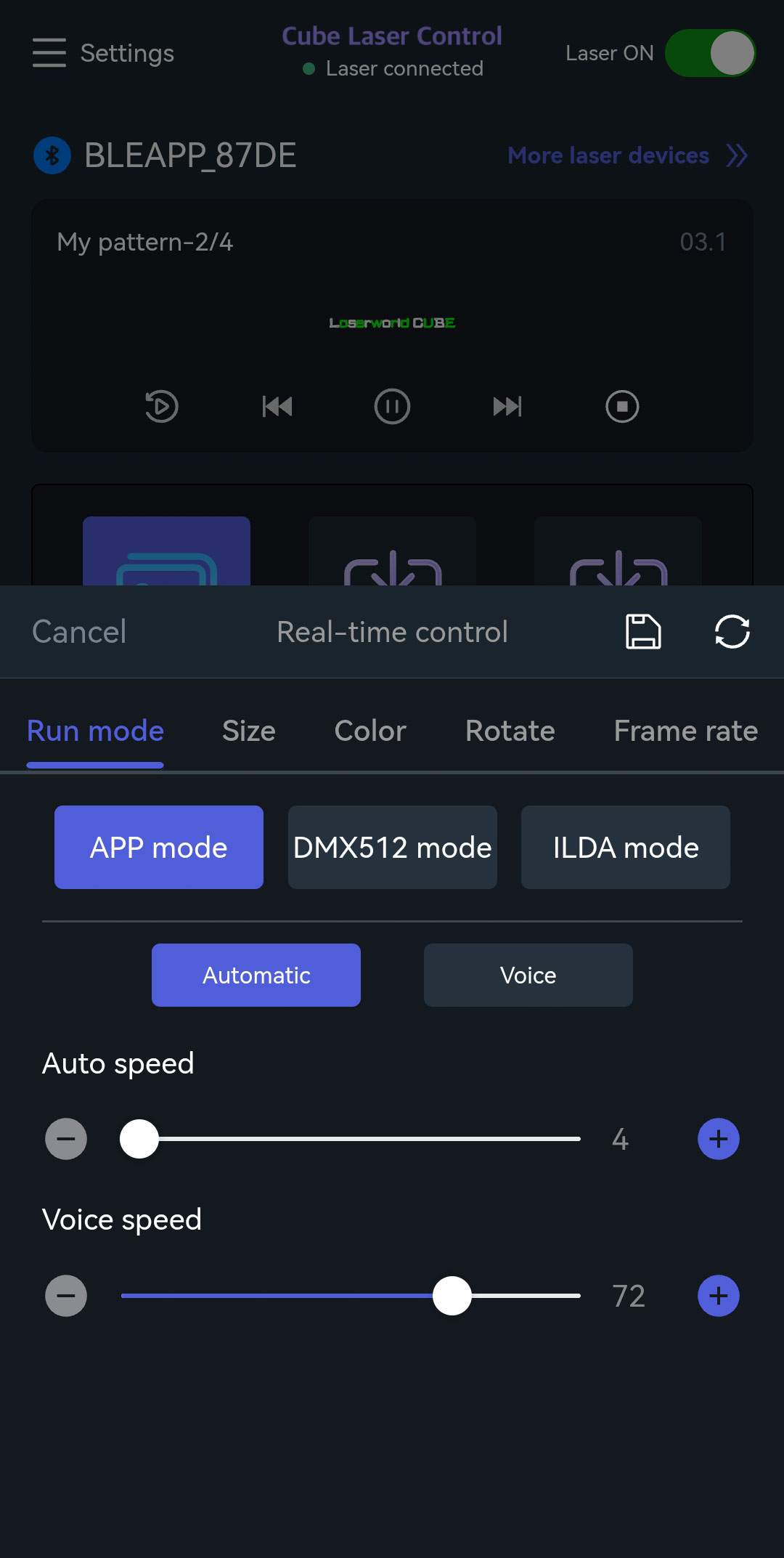
- Color, speed, and movement parameters can be adjusted
By tapping the purple button at the bottom center, additional settings such as size, color, and other parameters can be configured.
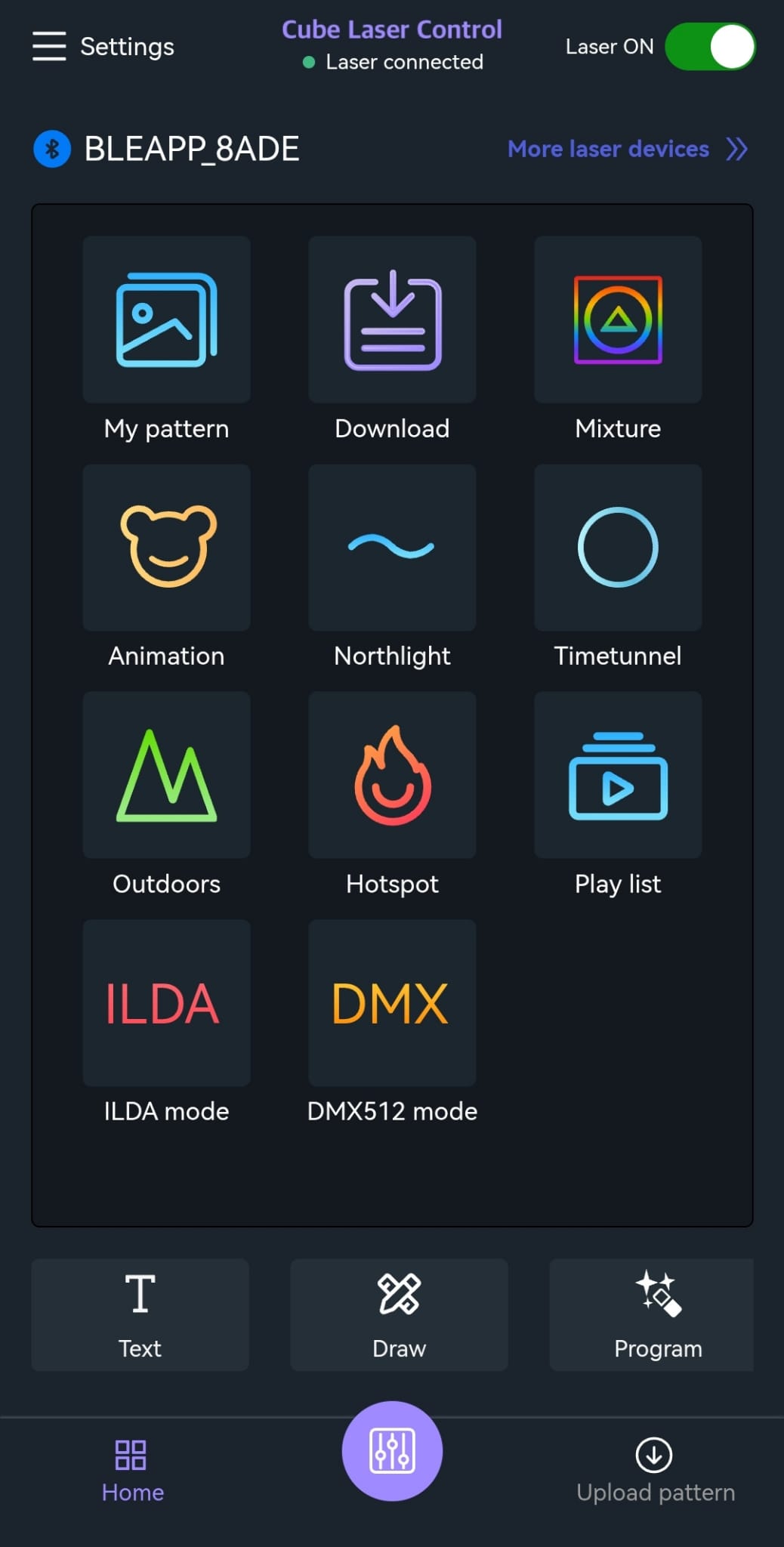
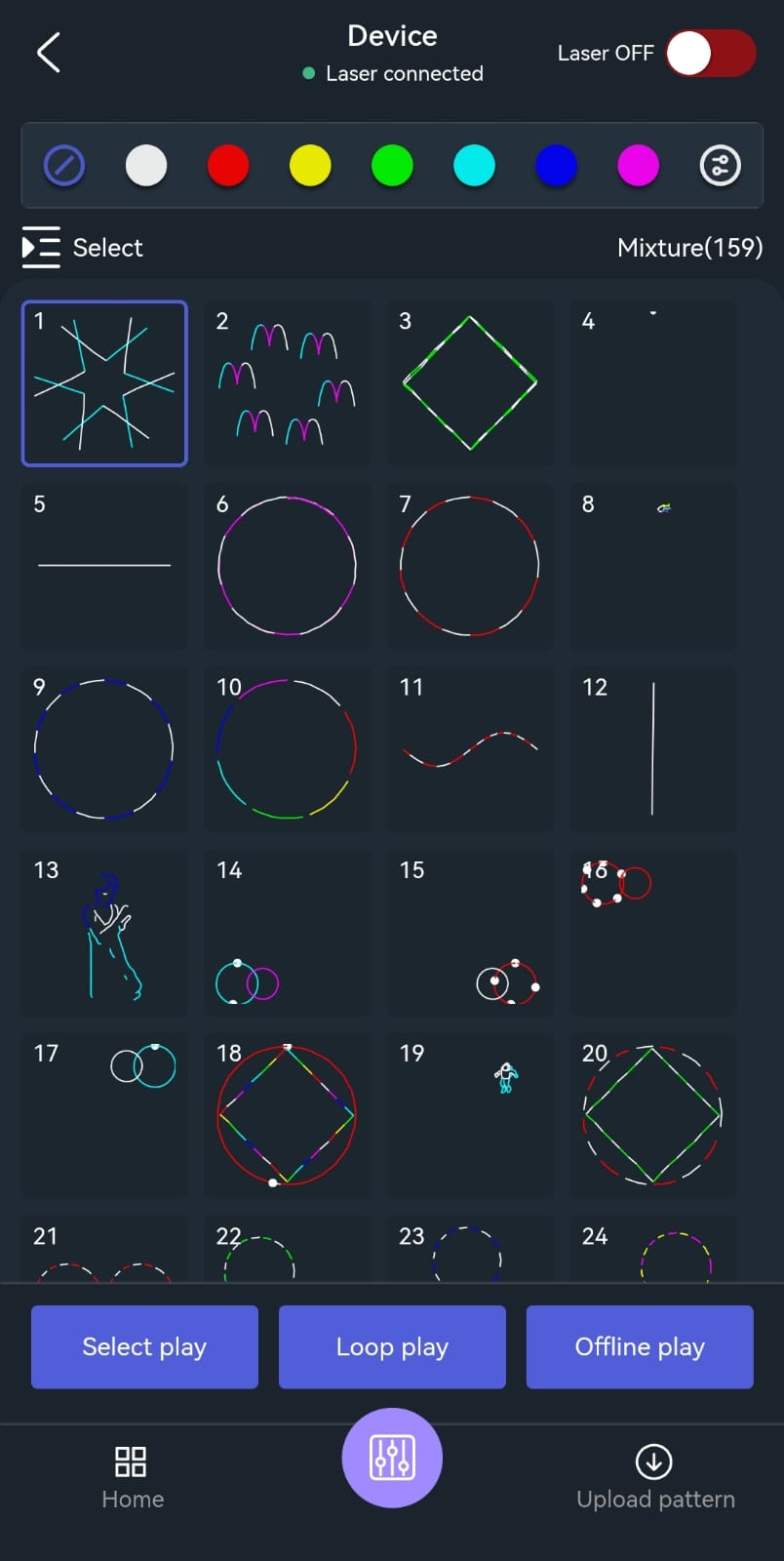
By double-tapping the “Mixture” icon, all available patterns are displayed.
Upload Patterns to the laser system
Using “Upload Pattern” (located at the bottom right of the Home screen), additional preinstalled patterns can be accessed.
Individual patterns can be selected and uploaded from the app to the laser system.
Once the upload is successful, the playlist in “Uploaded Patterns” can be configured individually using the purple button.