








Introduction, Getting started with the Cube Laser Control App
Preparation of the laser system:
To get started with the Cube Laser Control App and your CUBE laser system, make sure to follow the instructions in the user manual!
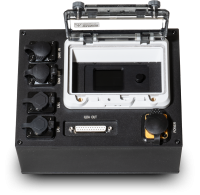
For laser output from the laser system it is essential, that the key is inserted into the key switch and turned to ON.
In addition to that it is essential, that an E-Stop is connected to the Interlock connector and that this E-Stop is unlocked. Under certain circumstances it is also possible to use the Interlock bridge plug that comes included in delivery to be used with the interlock connector instead of the E-Stop.
Connecting the App to the Laser:
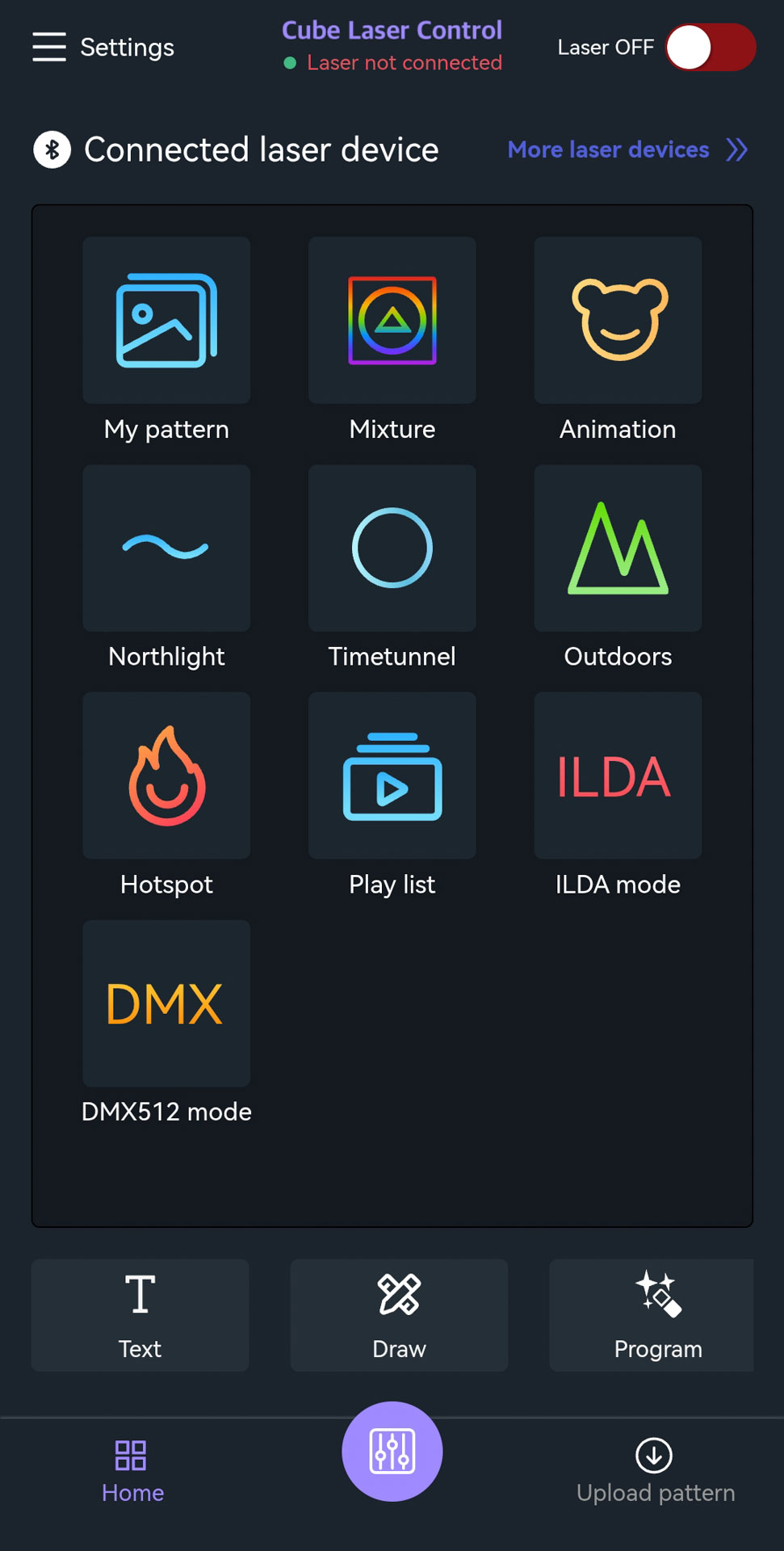
- Click on "Connected laser device".
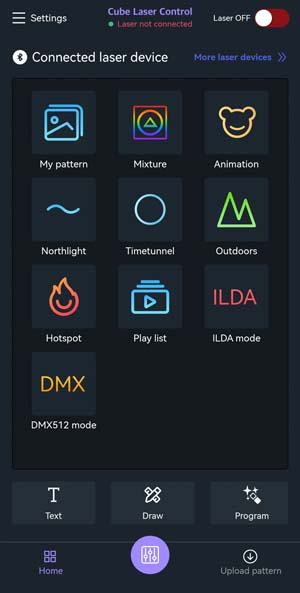
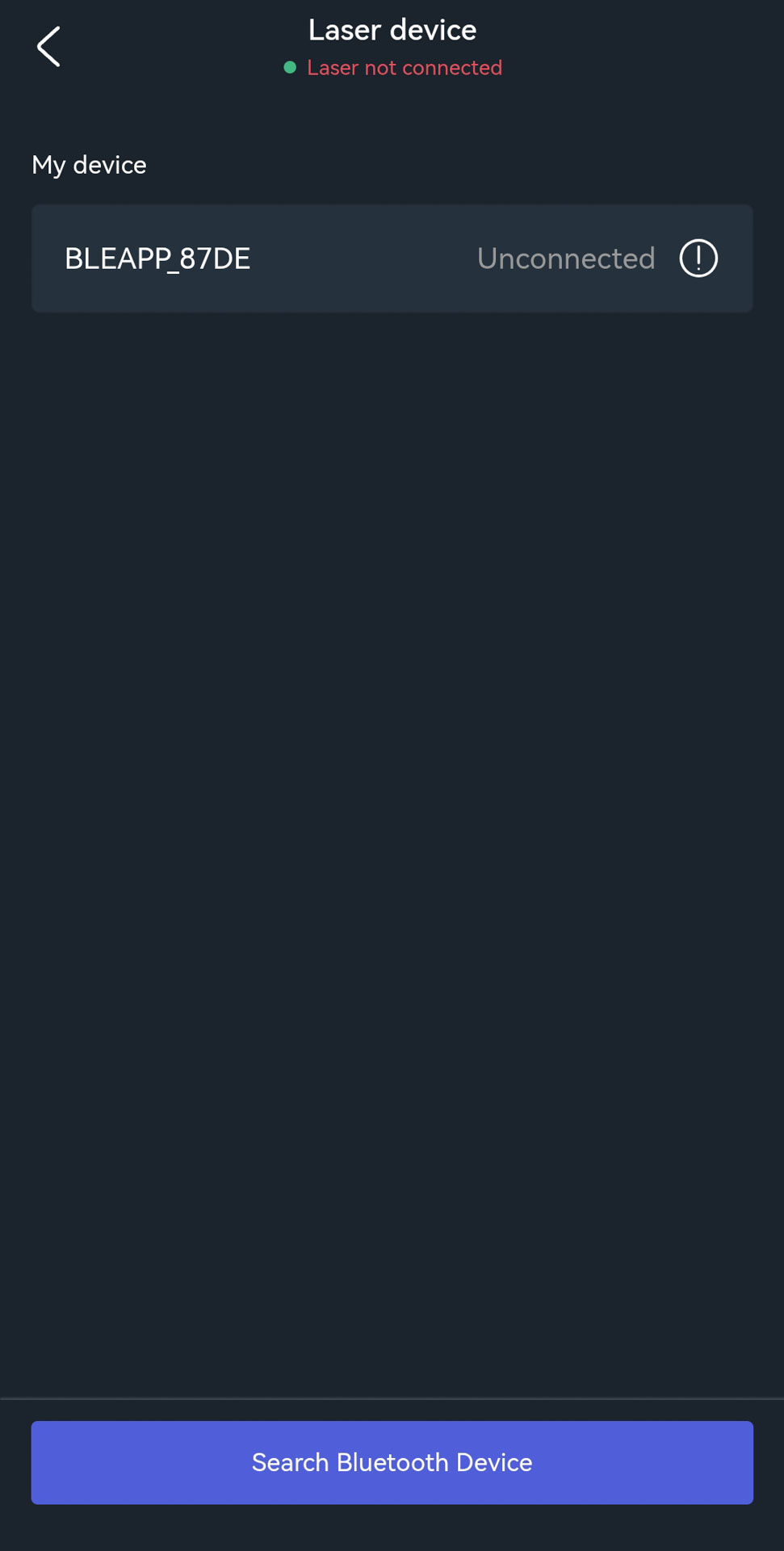
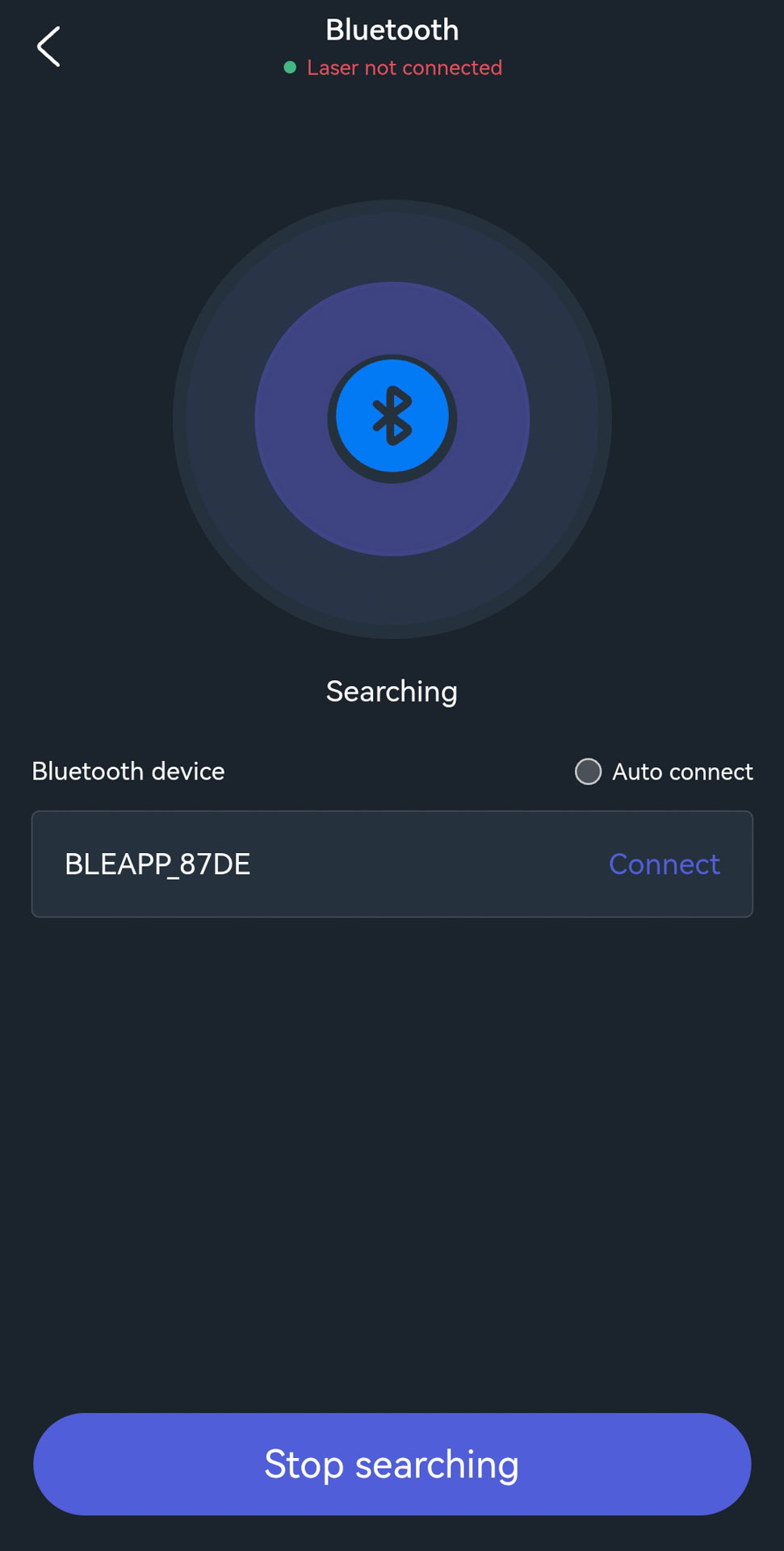
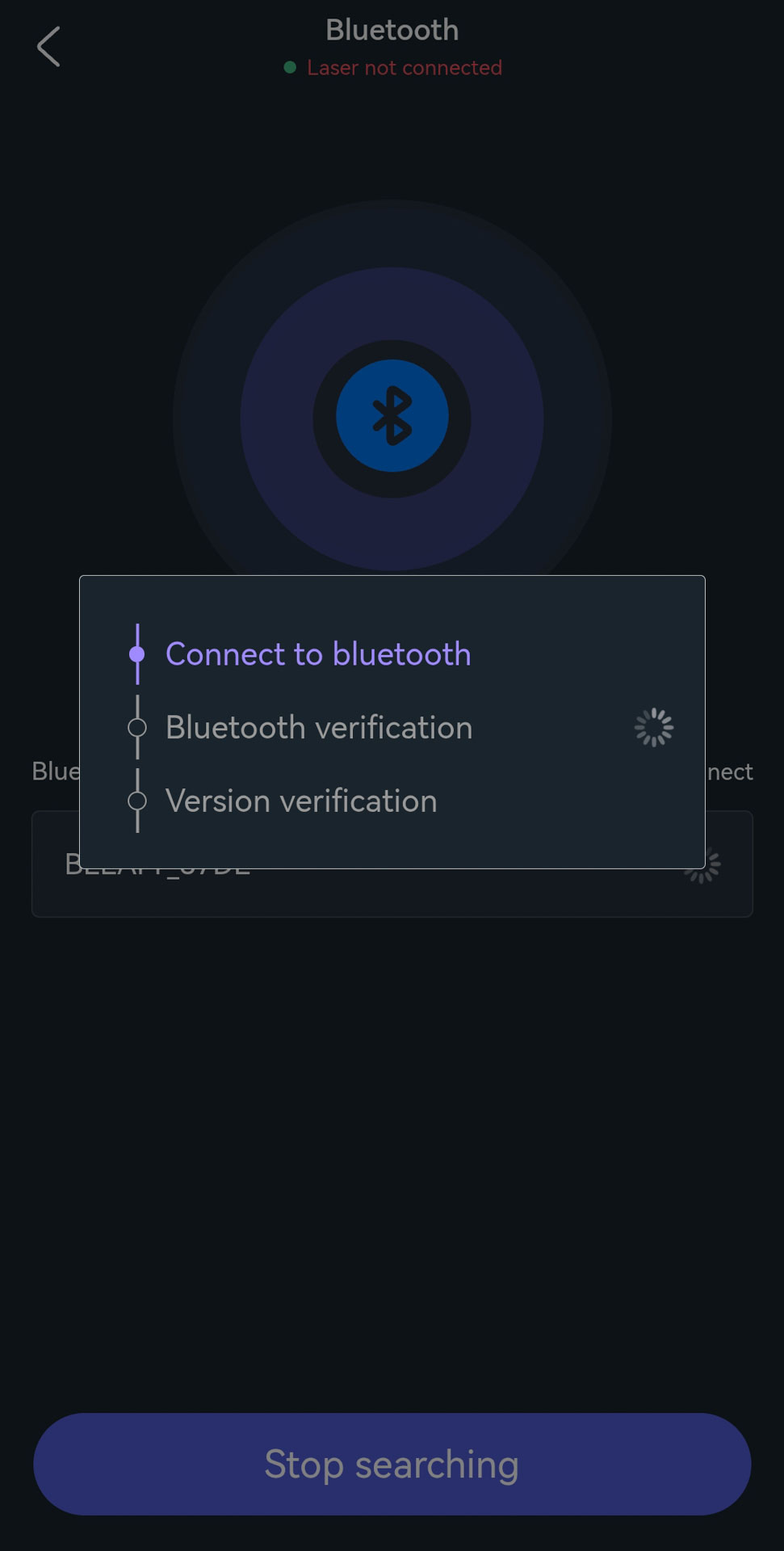
- Start a search for Bluetooth devices.
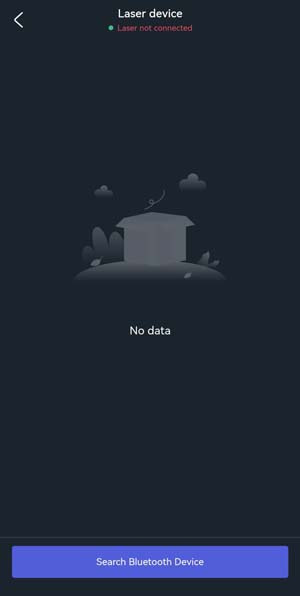
- The laser device is automatically detected (if not, see Troubleshooting connectivity issues).
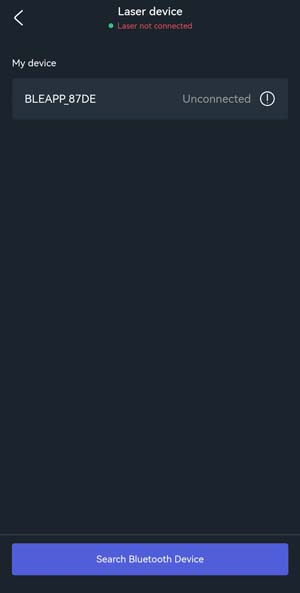
- Select the device to initiate the connection.
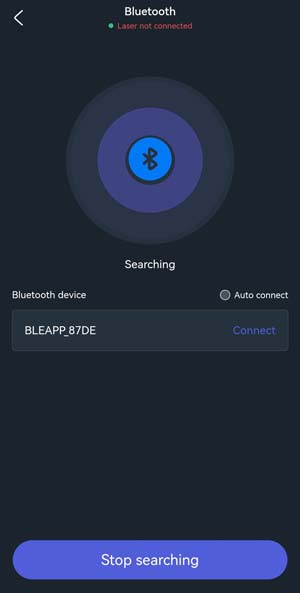
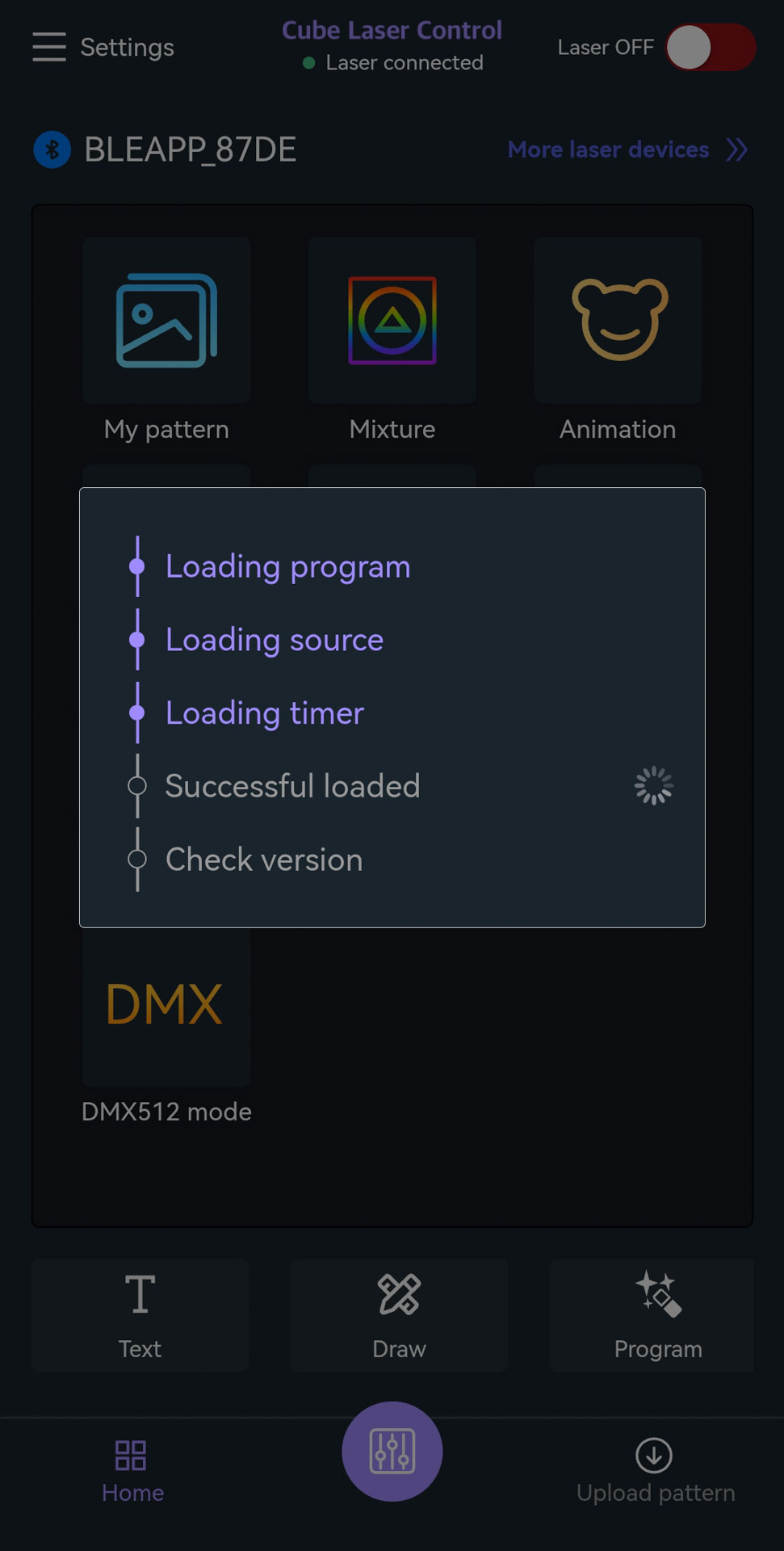
- Wait until the connection has been established; the text will change color. If the connection to this device is initiated for the first time, it can take several minutes for the connection and synchronization of the content with the app.
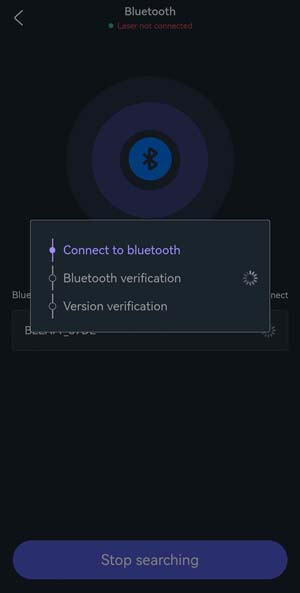
- Wait until the program has fully loaded; the text will change color again.
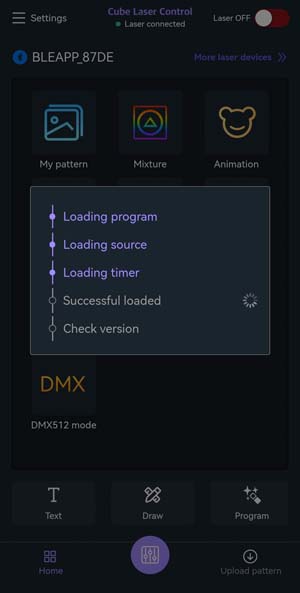
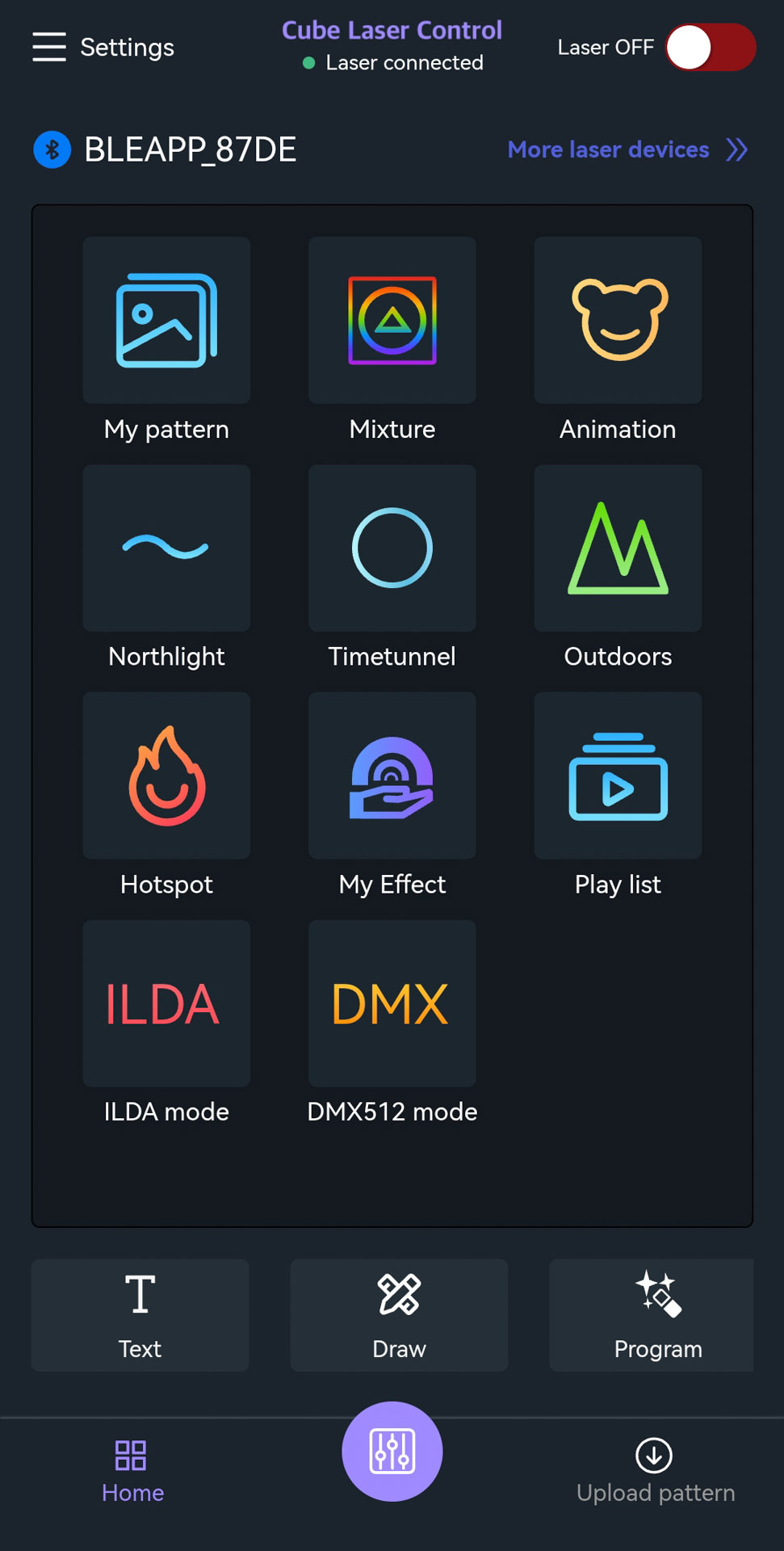
- A green dot will appear next to “Laser connected” and indicates that the Bluetooth connection was established successfully.
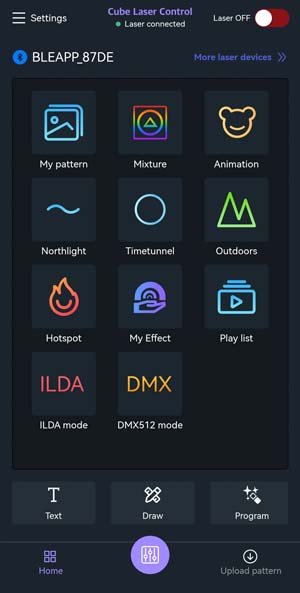
- The app is operational with limitations when the laser is switched off, as there is a close relation between the content in the laser and the functionality of the app.
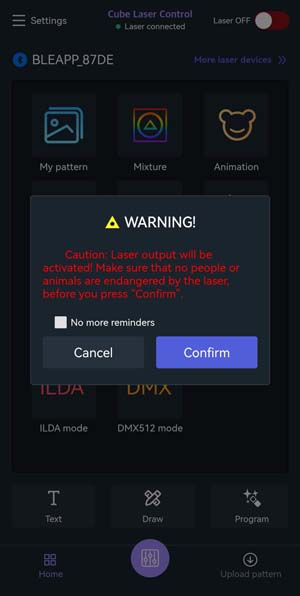
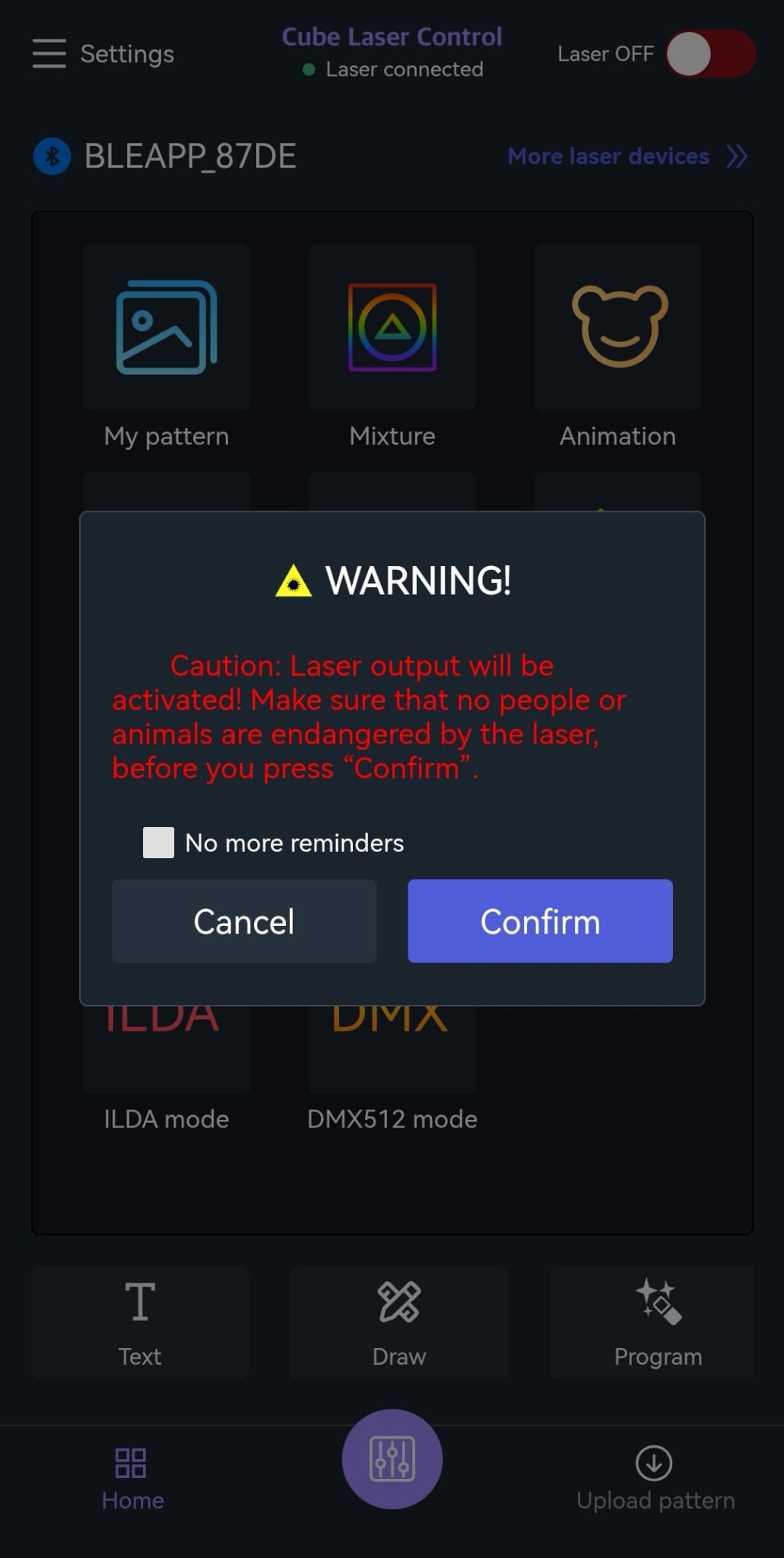
- To activate the laser output, it is required to switch the Laser OFF switch to Laser ON for laser safety reasons. when doing so, a „warning“ pop-up window will appear, warning of the activation of the laser output.